Wednesday, January 02, 2008

The Best Links 2007

The Best Links 2007

For the fourth year running, here are some of my favorite articles, videos, games, photography, discussions, and design pieces that I linked to in 2007. After you're done with these, try the lists from 2004, 2005, and 2006.

The streets of Portland are an ice skating rink for cars in this video.

Reconsidering the original three Star Wars movies in light of the prequels. R2D2 = top rebel spy.

Adam Gadahn's journey from rural California teen and death metal fan to a trusted member of Osama bin Laden's team of operatives .

Chris Jordan's photo series, Running the Numbers.

Michael Poliza's aerial photos of Africa. More here.

Malcolm Gladwell on Enron and the difference between puzzles and mysteries, investigationally speaking.

Smashing Telly, a collection of TV on the web, with an emphasis on documentaries and factual programs. I liked David's post on Zeitgeist and FEBLs.

Video of an autistic person describing the language she uses to communicate with her surroundings.

Good People, a short story by David Foster Wallace.

Nicholas Felton's personal annual report for 2006.

A pair of posts from Neatorama on photography: 13 Photographs That Changed the World and The Wonderful World of Early Photography.

The 51 Smartest, Prettiest, Coolest, Funniest, Most Influential, Most Necessary, Most Important, Most Essential Magazines Ever.

Susan Orlean on Robert Lang, former physicist and current world-class origami master. Here's my post on Lang.

A Line Rider masterpiece. (Line Rider?)

Kremlin Inc., a story of Vladimir Putin's de facto dictatorship of Russia.

2007 was the year of book art: Thomas Allen's pulp cutouts, Cara Barer's water-crumpled books , Nina Katchadourian's Sorted Books whose spines tell small stories, and Brian Dettmer's book sculptures.

Joel Johnson's great post on Gizmodo scolding the site's writers, gadget makers, and the site's readers "for supporting the disgusting cycle of gadget whoring".

Denis Darzacq's photographs of people seemingly floating above the pavement.

Panoramic photos from the Apollo missions. These are stunning.

Michael Pollan on the rise of nutritionism . His advice for healthy eating: "Eat food. Not too much. Mostly plants."

Desktop Tower Defense. This would top my Ten Best Games of the Year list if I'd done one.

On Conscientious, several photographers answer the question "What makes a great photo?"

Shorpy, a photoblog of old photographs, and FFFFOUND!, an image bookmarking site. Neither is probably legal in the strict sense, but they're both great online curated galleries.

Alberto Forero has collected a staggering amount of photography and design imagery and posted it to his Flickr account.

Social Explorer, interactive demographic maps.

Hypermilers try to wring as many miles per gallon out of their cars as they can. ( My post.)

Darwin's God. Are humans biologically wired to believe in God?

Dan Hill reviews Zidane: A 21st Century Portrait, a film that follows soccer star Zinedine Zidane through a single game.

Minority Kart, possibly the GAGOAT (greatest animated gif of all time).

Miranda July's wonderful handcrafted web site for her book No One Belongs Here More Than You.

An article on commuting, this crazy thing that most Americans do too much of.

The graph of US home prices from 1890 to the present as a rollercoaster.

As a social experiment, the Washington Post arranged for internationally acclaimed violinist Joshua Bell to play outside a DC subway station . Would anyone notice?

The New Yorker on David Belle and parkour, the sport he invented.

Maciej Ceglowski reports on the Alameda-Weehawken Burrito Tunnel.

NB: Studio's map of London constructed entirely out of type.

Trulia Hindsight, a map of property development through time.

Movies showing a closeup view of the Sun's surface.

Video footage of Joseph Kittenger's record jump from 102,800 feet up. Photo from Life magazine and a Boards of Canada music video that uses the footage.

Alex Reisner's site, especially the baseball section. ( My post.)

Interview with journalist Jonathan Rauch.

The greatest long tracking shots in cinema, including those in Touch of Evil and Children of Men.

Meg Hourihan took a bunch of different chocolate chip recipes, averaged the ingredients, and made cookies from the resulting meta-recipe.

The infamous four guys humping an ottoman video.

Does the Piraha language upend the theory of universal grammar?

Vimeo's sign in page is lovely.

Tim Knowles' drawings by trees. (My post. And more.)

How a woman randomly bumped into the person that stole her identity and chased her around until the police showed up to apprehend her.

Portraits of breaking sculpture by Martin Klimas.

Photo gallery that shows families from around the world and the amount of food they eat in the course of a week.

Errol Morris' investigation of a pair of Roger Fenton photographs in three wonderful parts.

Roger Federer's conservation of energy and attention helps him perform when it counts.

Jay Parkinson M.D. makes house calls, visits with patients via IM, and is generally trying to find new ways of doctoring.

Anthony Lane's appreciation of the Leica.

Kohei Yoshiyuki's photos of voyeurs watching lovers in a Japanese park. (My post.)

A restaurant review from the NY Times, circa 1859. My post about the review and lots more from the archives of the Times.

The story of Oscar the Cat, who comforts the dying at a Rhode Island nursing home.

Portraits of bears by Jill Greenberg. More photos at Greenberg's site.

Long New Yorker profile of David Simon and The Wire.

Elizabeth Kolbert on bees and colony collapse disorder. And bee space .

Photoshopped pictures of people's faces combined.

A video round (turn on the sound).

Optical illusion: is the woman rotating clockwise or counterclockwise?

From the excellent xkcd web comic: Little Bobby Tables.

Aicuña is a small secluded town in Brazil with an extremely high percentage of albino residents.

David Foster Wallace's wonderful introduction to The Best American Essays 2007.

Video depicting several ways to melt a chocolate bunny.

Tyler Cowen on some of the opportunity costs of the war in Iraq.

Beautifully terrifying photos of nuclear tests in French Polynesia.

Standing witness to a Guitar Hero wunderkind playing the game's most difficult song on expert level.

How America Lost the War on Drugs.

God's Eye View is an art project by The Glue Society depicting four Biblical scenes as they would have been captured by Google Earth.

The best way to deflect an asteroid turns out to be reflecting sunlight on it with a swarm of mirror bees.

Paul Otlet presages the web in 1934, calling it the "radiated library" or "televised book". ( More context.)

This was my favorite post of the year. I hope you'll excuse the self-link.

Oh, and maybe the best thing I didn't link to this year: Daft Hands.

Thanks for reading kottke.org for the past year. Happy new year to you and yours.

30 Top Jobs of 2008

30 Top Jobs of 2008
By Rachel Zupek, CareerBuilder.com writer

A new year means new beginnings: new resolutions, ideas and friends; new habits, relationships and goals; new salaries, titles and responsibilities. And perhaps most importantly, new jobs. Lots of 'em. And not just for 2008, either - until 2016.

Total employment is expected to increase by 15.6 million jobs during the 2006-16 decade, according to the most recent employment projections from the Bureau of Labor Statistics (BLS). Almost all of this growth will occur in the service-providing sector, which will account for 75 percent of all jobs in 2016.

Professional and related professions and service occupations are projected to grow most quickly, accounting for more than six of 10 new jobs created throughout 2006-2016. Twenty-eight of the 30 fastest-growing jobs are in professional and related occupations and service positions.

Interested in getting in on the new job action this year? Here are the 30 fastest-growing growing occupations for 2006-2016, according to the BLS.


1. Network systems and data communications analysts
2006 employment: 262,000
2016 projection: 402,000
Percent growth: 53.4
Salary range: $46,360 or more
Education/training: Bachelor's degree

2. Personal and home care aides
2006 employment: 767,000
2016 projection: 1,156,000
Percent growth: 50.6
Salary range: Less than $21,220
Education/training: On-the-job training

3. Home health aides
2006 employment: 787,000
2016 projection: 1,171,000
Percent growth: 48.7
Salary range: Less than $21,220
Education/training: On-the-job training

4. Computer software engineers, applications
2006 employment: 507,000
2016 projection: 733,000
Percent growth: 44.6
Salary range: $46,360 or more
Education/training: Bachelor's degree

5. Veterinary technologists and technicians
2006 employment: 71,000
2016 projection: 100,000
Percent growth: 41
Salary range: $21,260 - $30,560
Education/training: Associate degree

6. Personal financial advisors
2006 employment: 176,000
2016 projection: 248,000
Percent growth: 41
Salary range: $46,360 or more
Education/training: Bachelor's degree

7. Makeup artists, theatrical and performance
2006 employment: 2,000
2016 projection: 3,000
Percent growth: 39.8
Salary range: $30,630 - $46,300
Education/training: Postsecondary vocational award

8. Medical assistant
2006 employment: 417,000
2016 projection: 565,000
Percent growth: 35.4
Salary range: $21,260 - $30,560
Education/training: Moderate on-the-job training

9. Veterinarians
2006 employment: 62,000
2016 projection: 84,000
Percent growth: 35
Salary range: $46,360 or more
Education/training: First professional degree

10. Substance abuse and behavioral disorder counselors
2006 employment: 83,000
2016 projection: 112,000
Percent growth: 34.3
Salary range: $30,630 - $46,300
Education/training: Bachelor's degree

11. Skin care specialists
2006 employment: 38,000
2016 projection: 51,000
Percent growth: 34.3
Salary range: $21,260 - $30,560
Education/training: Postsecondary vocational award

12. Financial analysts
2006 employment: 221,000
2016 projection: 295,000
Percent growth: 33.8
Salary range: $46,360 or more
Education/training: Bachelor's degree

13. Social and human service assistants
2006 employment: 339,000
2016 projection: 453,000
Percent growth: 34.3
Salary range: $21,260 - $30,560
Education/training: Moderate on-the-job training

14. Gaming surveillance officers and gaming investigators
2006 employment: 9,000
2016 projection: 12,000
Percent growth: 33.6
Salary range: $21,260 - $30,560
Education/training: Moderate on-the-job training

15. Physical therapist assistants
2006 employment: 60,000
2016 projection: 80,000
Percent growth: 32.4
Salary range: $30,630 - $46,300
Education/training: Associate degree

16. Pharmacy technicians
2006 employment: 285,000
2016 projection: 376,000
Percent growth: 32
Salary range: $21,260 - $30,560
Education/training: Moderate on-the-job training

17. Forensic science technicians
2006 employment: 13,000
2016 projection: 17,000
Percent growth: 30.7
Salary range: $30,630 - $46,300
Education/training: Bachelor's degree

18. Dental hygienists
2006 employment: 167,000
2016 projection: 217,000
Percent growth: 30.1
Salary range: $46,360 or more
Education/training: Associate degree

19. Mental health counselors
2006 employment: 100,000
2016 projection: 130,000
Percent growth: 30
Salary range: $30,630 - $46,300
Education/training:  Master's degree

20. Mental health and substance abuse social workers
2006 employment: 122,000
2016 projection: 159,000
Percent growth: 29.9
Salary range: $30,630 - $46,300
Education/training: Master's degree

21. Marriage and family therapists
2006 employment: 25,000
2016 projection: 32,000
Percent growth: 29.8
Salary range: $30,630 - $46,300
Education/training: Master's degree

22. Dental assistants
2006 employment: 280,000
2016 projection: 362,000
Percent growth: 29.2
Salary range: $21,260 - $30,560
Education/training: Moderate on-the-job training

23. Computer systems analysts
2006 employment: 504,000
2016 projection: 650,000
Percent growth: 29
Salary range: $46,360 or more
Education/training: Bachelor's degree

24. Database administrators
2006 employment: 119,000
2016 projection: 154,000
Percent growth: 28.6
Salary range: $46,360 or more
Education/training: Bachelor's degree

25. Computer software engineers, systems software
2006 employment: 350,000
2016 projection: 449,000
Percent growth: 28.2
Salary range: $46,360 or more
Education/training: Bachelor's degree

26. Gaming and sports book writers and runners
2006 employment: 18,000
2016 projection: 24,000
Percent growth: 28
Salary range: Less than $21,220
Education/training: On-the-job training

27. Environmental science and protection technicians
2006 employment: 36,000
2016 projection: 47,000
Percent growth: 28
Salary range: $30,630 - $46,300
Education/training: Associate degree

28. Manicurists and pedicurists
2006 employment: 78,000
2016 projection: 100,000
Percent growth: 27.6
Salary range: Less than $21,220
Education/training: Postsecondary vocational award

29. Physical therapists
2006 employment: 173,000
2016 projection: 200,000
Percent growth: 27.1
Salary range: $46,360 or more
Education/training: Master's degree

30. Physician assistants
2006 employment: 66,000
2016 projection: 83,000
Percent growth: 27
Salary range: $46,360 or more
Education/training: Master's degree


Rachel Zupek is a writer and blogger for CareerBuilder.com. She researches and writes about job search strategy, career management, hiring trends and workplace issues.

Last Updated: Tuesday, December 18, 2007 - 3:03 PM

American Health Coverage Graph

What is Messed with American Health Coverage?

Gotta love capitalism

http://ucatlas.ucsc.edu/health/spend/cost_longlife75.gif

Tuesday, January 01, 2008

Desktop search comparison

Desktop search comparison

Note: This post was written in early 2005. Before reading this comparison, please keep in mind that not everything mentioned in the post may be valid today. New versions of almost all the applications compared here are available, and some may not even exist.

With Yahoo! releasing their desktop search tool, I thought it was time to take another good look at all the major desktop search tools. Here is my comparison:
Introduction -

Effective and easy access to information on a computer is a basic need. For long, this hasn't been an important issue due to the limited amount of information that could be stored on personal computers. But, with the ballooning size of hard disks and widespread use of digital devices that are generating tons of content, the demand for efficient methods to retrieve and search for this data is slowly growing and becoming more popular. This demand has grown big enough to attract the attention of the big players in the industry. As a result, what we now have is a glut of desktop search applications in the Windows environment, with many more expected, which are spoiling consumers for choice and making the entire experience of using a personal computer less frustrating. In this comparison I'll examine the different desktop search applications and recommend the one that provides the best overall experience.

To begin with, what does 'desktop search' mean? It's a little like having a search engine exclusively for your desktop. Just like searching the internet for information, desktop search allows searching of hard drives, at similar speeds. Yes, that's the interesting part. The first time a desktop search application is installed, it indexes the contents of your hard drive. Indexing is the process of reading through all supported file formats and storing that information in a way that can be quickly accessed when queried. This leads to extremely fast results, like in an online search engine. Indexing of the entire hard drive is a one time process, and as files are added, deleted or modified on the hard drive, these indexes are also updated. The advantage of this is that, one no longer needs to precisely remember the location of the thousands of files on a hard drive. Only a general idea about the file is sufficient. But, the index takes up some hard drive space. The space required depends on the amount of data present on the drive. But, this is usually not more than a few hundred megabytes in most cases and the resulting convenience is well worth the lost space. Compared to the soporific searches consumers had to endure at the hands of Windows' default search, this technology is a godsend. Actually, Windows XP has an indexing service which aims to do something similar, but, is badly implemented and is better left unused.

This comparison includes desktop search applications from Google, Copernic, Microsoft, Yahoo, blinkx and Filehand. This comparison is based on user interface, features, file format support, search results, resource utilization when running etc. Since Yahoo desktop search uses X1 technology, they are similar in many aspects and differ only in some features.

Installation and indexing -

While Google, Copernic and Filehand search were pretty small downloads, Yahoo and blinkx were larger than 6 MB. MSN desktop search is a small download by itself, by PDF file support requires an additional download from Adobe which is around 10 MB. The applications from Copernic and blinkx support Windows 98 onwards, but GDS, YDS, MSN desktop search and Filehand search only support Windows 2000 and XP. While the Google, Yahoo, MSN, Copernic and blinkx applications were free downloads, Filehand search is free but requires the user to register the product with a free registration key provided by them.

The installation of all the applications was pretty straightforward and there were no surprises.

After installation, each of them started their initial indexing. MSN desktop search, Filehand search and blinkx do not, by default index the entire hard drive. Changes have to be made in the application settings to ensure that the entire hard drive is indexed.

The time required for the initial indexing becomes important if the hard drive contains a very large amount of data. YDS took the least amount of time to index my hard drive and was extremely fast. This is impressive considering that YDS supports many more file formats than the other applications. More on file formats later. Copernic, Google, MSN and blinkx desktop searches took about the same time, but a little longer than YDS. Filehand search, though, took the longest; almost four times as long as YDS. The exact time taken by each application is not relevant as it depends on various factors such as the amount of data, the rotational speed of the hard disk, the speed of the processor etc. One gripe I have about MSN desktop search is that even though it indicated that indexing was complete, all I had to do was leave my computer idle for a few seconds, and it would pounce in and start indexing again. I don't know if these were efforts at incremental indexing or initial indexing itself.

If you are a user who keeps the computer on only when you are working, then you might want to leave it on for some time to let the desktop search application finish its indexing, as they index only when the computer isn't used for some time. This is to ensure that the system resources hungry process of indexing does not interfere with your normal work. Filehand search and YDS are exceptions to this. They index in fixed intervals, which can be defined by the user, or between a user specified period of time during the day. blinkx gives the user total control over the indexing, which is not the case with the other applications.

If the user tries to perform a search when the indexing is incomplete or in progress, then, the results are not comprehensive and do not include all the content on the hard drive.

User Interface -

Google desktop search -

Google Desktop Search home page

Google desktop search (GDS) is the only application to use a browser as the interface with the user. All the other applications have their own dedicated applications. The interface is very similar to the Google web search interface. Using a browser as the interface has both pros and cons. The advantage is that Google can easily integrate search results from the web and the desktop. The disadvantage is that Google cannot leverage the inherent power of desktop applications, such as a preview of search results, instant results as the query is being typed etc.

Web results page

The above image shows how GDS integrates search results from the web and desktop.

Copernic desktop search -

Email Search

Copernic desktop search (CDS) has by far the best interface of the lot. It has a familiar e-mail client look to it and is very convenient and easy to use. The user can select what kind of file he wants to search for in the toolbar at the top. Searches can be refined to narrow down the results. The results can be instantly previewed in the 'Preview' pane. This is extremely convenient and saves the trouble of actually opening each result in its native application. Details of the selected result are also displayed.

blinkx -

blinkx has a well designed user interface, but sorely lacks a preview pane. As a saving grace, it does show a snippet of the document in a pop up box when the mouse hovers over it in the results list box, but, only the first few lines of the document and not the portion where the search term is.

blinkx has a well designed user interface, but sorely lacks a preview pane. As a saving grace, it does show a snippet of the document in a pop up box when the mouse hovers over it in the results list box, but, only the first few lines of the document and not the portion where the search term is.blinkx provides a separate button for each of the different file types that it supports, so, searching among a particular file type takes one lesser step.

Filehand search -

The Filehand search UI is very simple, without any bells and whistles. All the important controls fall easily to hand. Advanced search options are available on clicking a button. Though there is no preview pane, Filehand search uses the web search engine trick of displaying a portion of the document where the search term is present.
MSN desktop search -

In typical Microsoft fashion, MSN desktop search is all eye candy and looks great. It consists of different toolbars for the desktop, IE and Outlook. In the desktop toolbar, a small window pops up providing instant feedback as a query is typed. Searches from Outlook and IE open in an application window, but, there is no preview pane. Only a small snippet of relevant text is displayed below the title/subject.
Yahoo desktop search -

YDS always displays all the files in the index. The search results are narrowed down as the user types the query. It has separate tabs to search for e-mail messages and also attachments that none of the applications have.

The UI of YDS is based on the version 5.0 beta of X1 and it is a huge improvement over X1's earlier version.
File format support -

The utility of any desktop search application lies in the number of different file formats that it can support. Obviously, the more the better.

All the applications support text, HTML, MS Word, Excel and Powerpoint, MS Outlook/Outlook Express and the popular music formats. Only Filehand search does not support image and video files. Corel Wordperfect files are also supported by YDS, CDS and Filehand search.

Only GDS does not support the all important PDF format. Considering the popularity of PDF and the number of documents the average user has, this is a glaring miss from Google. GDS redeems itself by being the only one to support searching of chat logs, but, supports only AOL instant messenger.

CDS is the only application in the comparison to support Firefox. With the rising popularity of Firefox, this will definitely be a plus for its users.

The winner in this department is YDS. It supports a whopping 225+ file formats which is impossible to list here. The only applications it does not support are chat tools and Firefox.
Features -

Here I'll highlight only the standout features of each application, the basic search functionality being the same in every application.
Google desktop search -

Google Desktop Search results page

The results in GDS are listed in the familiar Google format. The number of search results for each file format is displayed on the top and the results can be narrowed down with a single click.

As mentioned earlier, Google's decision to stick with the browser pays off here, with a seamless integration of web and desktop searches. If GDS is installed, searching on the Google website will return results which include data on the desktop.

GDS also allows the display of search results sorted according to date or relevance as determined by the Google algorithms.

Supported file formats need to be opened in their native applications, but, chat logs, e-mail conversations and cached web pages can be opened in the browser itself. Also, GDS does not allow searching through attachments in mail.

By using the browser, GDS can't provide the instant feedback experience, but, using the recently unveiled 'Suggest' feature, they may make up for it by suggesting keywords from the index as the user types them.

The stand out feature of GDS is its ability to index the IE browser cache and history. Whether it is a security risk or not is for the user to decide. On single user computers this can be a very useful feature.
Copernic desktop search -

Deskbar

CDS puts a search bar in the Windows task bar which can be used to quickly access the application. This is pretty handy, but at the cost of some system resources. The preview pane is very useful, but, is not available for the multimedia content. It also has a few problems displaying Powerpoint files. Also, although CDS displays that portion of the file where the search term first occurs, subsequent occurrences will have to searched for manually. This is very inconvenient when documents have hundreds of pages. On contacting Copernic Support for a solution to this problem, the impressively swift reply was that the feature was still not implemented and it could be accomplished by using the Ctrl + F key combination.

Another nifty little feature of CDS is that every time it's indexing the drive the system tray icon changes to reflect it. While it doesn't seem to be very important, its value becomes apparent during day to day usage. Every time the application starts indexing it takes up a lot of system resources and the user can immediately see that CDS is the culprit. A small move of the mouse and CDS will quietly run back to its corner. But, with other applications it takes some time to realize the cause of the system slowdown.
blinkx -

The latest version of blinkx has a number of new innovative features. This version also indexes the metadata of JPEG images and MP3 files, a welcome inclusion since multimedia search shouldn't be confined to searching for just the filenames.

There is also something called SIS or 'Stuff I've seen'. Searching under this category allows the user to search only through what he has been looking at online.

The 'Smart folder' feature can be used to create folders which are topical and over time blinkx will add content to that folder from the web and local drive when it thinks that specific topics are similar to the ones in that folder.

Another new feature is the inclusion of the ability to search on peer to peer networks. blinkx uses the Gnutella protocol and searches can be performed and files downloaded directly from within the application. The user is forewarned that blinkx is not responsible for content downloaded from P2P networks. P2P networks being extremely dynamic in nature, file availability is never consistent.

blinkx also provides a way to search the web in a number of categories directly just with the click of a button. The default search engine is blinkx's own, but this can be changed to one that the user desires.

The blinkx toolbar appears on the title bar of the active window and based on the contents of that window provides the user links to related websites, blogs, products and other content on the local machine. The buttons on the toolbar are initially dim, but become coloured when relevant content is found.

The toolbar is supported for the Internet explorer, MS word. Blinkx claims MS Outlook is also supported, but did not work with Outlook 2003 on my computer.
Filehand search -

The best feature of Filehand is the small toolbar that appears above each search result when the mouse hovers over it. The most useful feature lacking in all the other applications is the ability to move from one search term to the next through the entire document. This prevents scrolling through the entire document looking for the search term. The amount of extract displayed can also be increased or decreased. Quick navigation to the beginning or end of the file, or even scrolling through it is possible.

Filehand search also indexes the metadata of MP3's, but does not support audio or video files. Searching through attachments in mail is also not supported.

Similar to GDS, Filehand search also provides relevance ranking.
MSN desktop search -

MSN desktop search tool's strength is its tight integration with Outlook. It can search through the Outlook calendar, tasks and notes. MS Onenote is supported too. Certain files can be modified to enable a large number of search shortcuts which can be quite handy. It does not search through the IE browser cache and history though.
Yahoo desktop search -

YDS gives extra importance to e-mail search and it works like a charm. A separate tab is provided to search through attachments. The one area where YDS beats the competition hollow is in the speed of its searches. Results are provided as the user is typing his query and is blazing fast. Although similar instant feedback systems are present in blinkx and CDS, they are nowhere as quick as YDS.

Another killer feature of YDS is it's ability to preview any file format in exactly the same way as it would appear in it's native application. Even multimedia files can be previewed within YDS itself! This file viewer support for all the formats it supports is really what sets YDS apart.

YDS does integrate online search, but, it's not integrated into the application like in CDS. YDS also provides a search tool bars for Outlook and the Windows taskbar.

Searches can also be saved to be used at a later date, a feature unique to YDS.

 
Search results -

All the applications provide a means to sort the search results according to the modified date, file type etc. but only GDS and Filehandle search use their own algorithms to determine which result is most likely to match the user query. The other applications simply display the matches from their database of keywords. So, the quality of searches is not an issue in the keyword matching applications and in the absence of a well constructed search query, relevance ranking is more of a hit or miss game.
Resource utilization -

Resource utilization is always an important factor to be considered in case of applications which always run in the background. Among the desktop search applications, Filehand search was the most frugal in this regard. It required just more than 1 MB. CDS, GDS and MSN desktop serach were within the 10 MB mark, and YDS needed around 20 MB, but, the biggest shock was blinkx, which needed more than 40 MB of precious RAM space. This is a price the user will have to pay for the many features that blinkx supports. Features like providing relevant search results constantly based on what the user is viewing is bound to be resources heavy. Blinkx is definitely not for someone who is already short of RAM.

Indexing is naturally resource hogging in all cases and is best scheduled for when the computer is idle. CDS, blinkx and GDS gain extra points here as they wait to see when the system isn't busy and finish their job.
Privacy -

With the growing popularity of desktop search applications, privacy fears were bound to arise. But, by taking some simple precautions everyone can enjoy the benefits of these wonderful productivity enhancers. YDS, CDS, blinkx and GDS do not support searching of network drives. MSN desktop search and Filehand search do, so, special attention has to be paid to their configuration on networks, to prevent the spread of confidential data.

On desktops, users can take simple precautions like turning off a desktop search application if they do not want their activities to be indexed for later retrieval, like on a public computer. Extra care can also be taken by specifying that folders with private information should not be indexed.

Google has been at the receiving end of allegations about how GDS can be used to breach a user's privacy. This is partly because GDS allows the caching and searching of browser history, especially secure web pages, the kind used in online banking, shopping etc. But, caching of secure pages can be disabled if the user wants to. Also, there are doubts that Google sends personal data to its servers to integrate web and local drive searches. This isn't true. GDS sits in between the user's computer and Google's servers. When the user enters a search query, the GDS application receives the web related results from Google, adds its own locally and displays both in the browser. No data ever leaves the user's computer.
And the winner is….

Google desktop search is a very good application that has a lot going for it. But, the lack of PDF support is something that can't be overlooked. Instant feedback during searches is also missed. Like some of the other applications, GDS is still in beta, and I'm sure it'll be hard to beat when it is ready.

Filehandle search is a minimalist and does the things it is designed to do extremely well. If I had to pick the best feature among all the applications, then it would have to be the ability to scroll to each occurrence in the results. But, it is too slow in its indexing and also takes up a lot of space for its index compared to the other applications. It also does not support searching of attachments in mail, photos or video, which is quite important. With digital cameras becoming as popular as they are, image search is a must.

MSN desktop search is a tool that works for the avid Outlook user. Though it has a polished feel to it, a preview pane is sorely missed. And, I think it will never support Mozilla applications! So, I'll give it a miss for now.

The sheer breadth of features offered by blinkx is unmatched. 'Smart folders' and SIS are extremely innovative features and indexing of JPEG and MP3 metadata is invaluable. If you can get over the lack of a preview pane and the enormous system requirements then, blinkx is definitely for you.

Copernic desktop search will always have many users simply because of its marvelous user interface. Everything falls easily to hand and the search bar is also very handy. It also supports most of the file formats normally used at home and all in all is an excellent all rounder. If you use Firefox then CDS is a must have as no other application supports it.

The application I will not be uninstalling at the end of this comparison though will be Yahoo desktop search. All the amazing features of X1 at no cost is nothing but a steal. For the vast majority of users who don't use Mozilla or Eudora and don't need to index remote drives, YDS fits the bill perfectly.
The future….

The desktop search space is really heating up. As I write this, Mamma.com, a search engine is in the process of acquiring Copernic. AOL has signed up to use Copernic technology in its desktop search application. Microsoft might as well use its monopoly with Windows and do another Netscape.

So, what can we expect from desktop search applications in the years to come? Well, I can only speculate.

Google is in a wonderful position to revolutionize search all over again. Right now, web search results only include content on public servers. But, with GDS, Google could give people the ability to search every hard drive on the planet with its application installed. Privacy and security will be an issue, but not something that can't be taken care of. Blinkx already has implemented a rudimentary form of this in its P2P component, but Google has the ability to make the whole process transparent to the user.

With the exploding popularity of digital content generation devices like still and video cameras, the ability to search through this content will become critical. Otherwise, it will be difficult to cope with the sheer amount of data that is present on our hard drives. Search utilities must be integrated with the already available technology of pattern matching in images and videos. The dream of on demand information at ones fingertips will truly be realized in the years to come and that need will have to be fulfilled on the desktop by these very applications.

Some applications that I did not include in this comparison are -

Ask Jeeves desktop search

HotBot Desktop
Note - All screenshots were obtained from the respective websites.
Tags - , , , , , , ,

High Achiever vs Gifted Learner vs Creative Thinker

High Achiever, Gifted Learner, Creative Thinker

Bertie Kingore, Ph.D.


Identification of gifted students is clouded when concerned adults misinterpret high achievement as giftedness. High-achieving students are noticed for their on-time, neat, well-developed, and correct learning products. Adults comment on these students' consistent high grades and note how well they acclimate to class procedures and discussions. Some adults assume these students are gifted because their school-appropriate behaviors and products surface above the typical responses of grade-level students.

Educators with expertise in gifted education are frustrated trying to help other educators and parents understand that while high achievers are valuable participants whose high-level modeling is welcomed in classes, they learn differently from gifted learners. In situations in which they are respected and encouraged, gifted students' thinking is more complex with abstract inferences and more diverse perceptions than is typical of high achievers. Articulating those differences to educators and parents can be difficult.

In 1989, Janice Szabos published a comparison of the bright child and the gifted learner. Her comparison helps to delineate differences between the two groups and provides a useful format for discussions. However, some of the items listed in the comparison are questionable. For example, the gifted learner is credited with having wild, silly ideas. In reality, it is creative thinkers who exhibit the ideas often called wild or silly; not all gifted learners demonstrate that aspect of the creative process. As a second example of concern, Szabos lists bright children as enjoying straightforward, sequential presentations. This behavior seems more associated with learning preferences than with ability. Arguably, some gifted learners also enjoy straightforward, sequential presentations, but their questions and responses to such a presentation may dramatically differ from the questions and responses of bright children. As a final example, Szabos' comparison states that gifted learners prefer adults while bright children enjoy peers. This statement has negative connotations leading to the stereotype that gifted learners are so out of sync with society and have such poor social skills that they can only communicate with adults. In reality, gifted learners seek idea-mates rather than age-mates. They enjoy the company of peers when the peer group understands the shared ideas.

Responding to those concerns, a three-way comparison of a high achiever, a gifted learner, and a creative thinker is proposed for you to consider and ponder. No column is intended to be mutually exclusive. For example, a high achiever might also be a creative thinker, and a gifted learner might also be a creative thinker; a creative thinker might also be a high achiever, and a gifted learner might also be a high achiever. This three-column comparison emerged over several years while working with students representing all three of these groups. Hundreds of teachers and students reviewed and discussed the items as the comparison developed.

These students and teachers found the following cartoons helpful in understanding the comparison since high achievers, gifted learners, and creative thinkers co-exist in many classrooms. In the first cartoon, the teacher announces an assignment, and the high achiever quickly tries to determine what the teacher most wants so he can please and satisfy the teacher's intentions: "What do you really want?" The gifted learner ponders what to do that would most interest her as she learns: "What I would like to do is..." Simultaneously, the creative thinker's mind begins to race with all of the diverse and varied possibilities that could be explored:

Later, in the second cartoon, the teacher poses a question to the class. The high achiever is delighted because he knows the answer and is in control: "Oh, I know that answer!" The gifted learner considers multiple nuances and alternative perspectives: "The question could mean..." or "It might suggest..." or "Another way to say that is..." or "Yah, but..." The creative thinker is still obsessed with the seemingly endless possibilities of the earlier assignment, concentrating so much on his ideas that he completely misses the teacher's question:

Consider sharing this three-way comparison with your gifted students to elicit their perceptions. If you wish, their responses can be shared with the author at the email listed below. Stimulating discussion rather than fostering agreement is the goal. The results might clarify or extend understanding among administrators, teachers, parents, and students of the marvelous similarities and differences among high achievers, gifted learners, and creative thinkers.

  
Gifted learners prefer idea-mates rather than age-mates. They enjoy the company of peers when the peer group understands the shared ideas.


A High Achiever...

A Gifted Learner...

A Creative Thinker...

Remembers the answers.

Poses unforeseen questions.

Sees exceptions.

Is interested.

Is curious.

Wonders.

Is attentive.

Is selectively mentally engaged.

Daydreams; may seem off task.

Generates advanced ideas.

Generates complex, abstract ideas.

Overflows with ideas, many of which will never be developed.

Works hard to achieve.

Knows without working hard.

Plays with ideas and concepts.

Answer the questions in detail.

Ponders with depth and multiple perspectives.

Injects new possibilities.

Performs at the top of the group.

Is beyond the group.

Is in own group.

Responds with interest and opinions.

Exhibits feelings and opinions from multiple perspectives.

Shares bizarre, sometimes conflicting opinions.

Learns with ease.

Already knows.

Questions: What if...

Needs 6 to 8 repetitions to master.

Needs 1 to 3 repetitions to master.

Questions the need for mastery.

Comprehends at a high level.

Comprehends in-depth, complex ideas.

Overflows with ideas--many of which will never be developed.

Enjoys the company of age peers.

Prefers the company of intellectual peers.

Prefers the company of creative peers but often works alone.

Understands complex, abstract humor.

Creates complex, abstract humor.

Relishes wild, off-the-wall humor.

Grasps the meaning.

Infers and connects concepts.

Makes mental leaps: Aha!

Completes assignments on time.

Initiates projects and extensions of assignments.

Initiates more projects that will ever be completed.

Is receptive.

Is intense.

Is independent and unconventional.

Is accurate and complete.

Is original and continually developing.

Is original and continually developing.

Enjoys school often.

Enjoys self-directed learning.

Enjoys creating.

Absorbs information.

Manipulates information.

Improvises.

Is a technician with expertise in a field.

Is an expert who abstracts beyond the field.

Is an inventor and idea generator.

Memorizes well.

Guesses and infers well.

Creates and brainstorms well.

Is highly alert and observant.

Anticipates and relates observations.

Is intuitive.

Is pleased with own learning.

Is self-critical.

Is never finished with possibilities.

Gets A's.

May not be motivated by grades.

May not be motivated by grades.

Is able.

Is intellectual.

Is idiosyncratic.


5 Packs to Transform Windows to other OS

5 Packs to Transform Windows to other OS

It's a new year, why not give your years old XP operating system a new look? If you're bored of having to look at the same kind of icons and eyecandy everytime, you can download and install these free transformation packs, and transform XP to look like any other OS.

(Note: Some of the listed transformation packs are quite extensive so please read installation guidelines carefully)

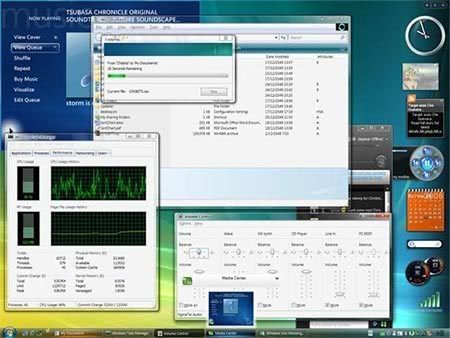
Vista Transformation Pack [Download]

vista-transformation-pack.jpg

Vista Transformation Pack does all kinds of appearance tweaks, and makes Windows XP look like Vista. From icons, transparency to new sounds, this pack does it all to make your XP look like Windows Vista.

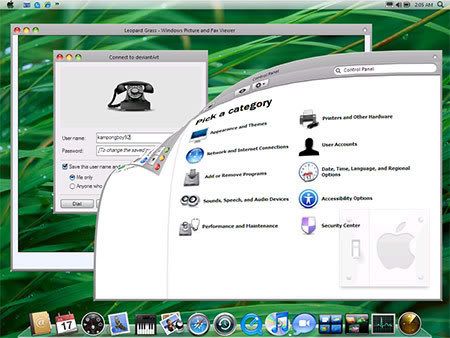
Mac OS Transformation Pack [Download]

mac-OSX-transformation-pack [ bigger image]

Transforms XP to look like Mac OS X 10.5. Some important components like Windows Explorer and other shell files are patched to mimic Mac OS X appearance. Work only with Windows XP SP2 (English version).

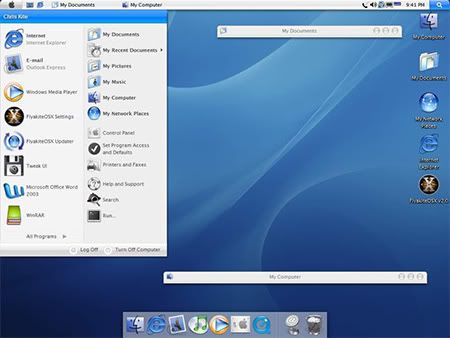
FlyakiteOSX [Download]

flyakite-windows-like-OSX

Again, make your windows look like Mac OS X. However, it's much more comprehensive than the above one. This enhancement utility does everything from registry tweaks, visual styles, sounds, icons to imitate the appearance of Mac OS X. See other screenshots here. If you're using iTunes then make sure to deselect 'iTunes Multi-Pugin' option (under 'Software') in the installation wizard.

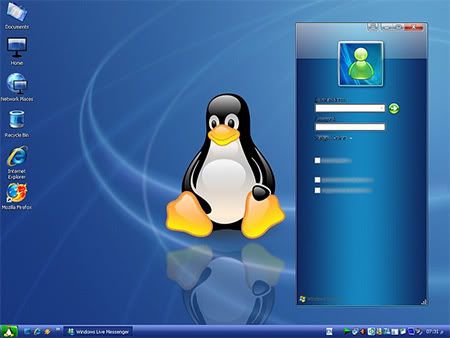
Fedora Transformation Pack [Download]

fedoratrans.jpg

This tool is intended for making XP resemble the Fedora Linux Distro. Though the utility just packs a simple visual style, it does include icons, screensavers and wallpapers, and other Fedora-like skins for programs.

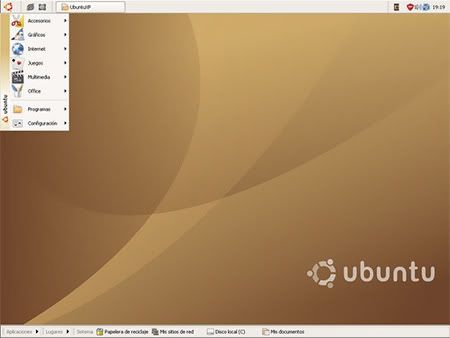
Ubuntu Transformation Pack [Download]

ubuntu-transformation-pack

This pack contains visual styles, icons and other patches that can give the brownish Ubuntu look to Windows XP. If you just can't get Ubuntu working on your PC, but still love its looks, you can download this pack. [via]

Filed Under: Windows ¦ Software

Dismissing VLC Errors in OSX

Go to the Interface section of VLC's preferences, check the "Advanced" flag at the bottom of the window and click the box next to "Be Quiet". Afterwards, save the settings and restart VLC. It won't show any warnings / error messages anymore. If needed, you can still access them in the "Messages" window (the red and yellow lines).

Saturday, December 29, 2007

10 Sites to Find Free Graphic Design Courses Online

10 Sites to Find Free Graphic Design Courses Online

You don't need a degree to become a graphic designer, but a little bit of training won't hurt. Read on to find out where you can get graphic design lessons and tutorials free of charge.

1. Sessions Online School of Design - DesignMentor Training (sessions.edu)

The Sessions Online School of Design recently started offering free graphic design tutorials written by class instructors. The online tutorials can be accessed from the site without registration and include step-by-step instructions, screen shots and more.

2. Designer Today Magazine (designertoday.com)

Designer Today Magazine offers a number of free graphic design tutorials online to subscribers and non-subscribers alike. Tutorials include step-by-step instructions, project files and images. There are up to 30 new tutorials published every month, so finding a topic of interest shouldn't be a problem.

3. Adobe Online Training (adobe.com)

Adobe offers a number of sample courses for graphic designers that can be tried out for free online. Course options include Adobe Photoshop CS2, Adobe InDesign CS2, Adobe Acrobat 7.0 and Adobe Premiere Elements. Registration is required.

4. QuarkEd (quark.com)

QuarkEd offers QuarkXpress training for beginners and old hands. Training is broken down into individual lessons that can be downloaded one file at a time. Registration is not required, but you will need QuarkXPress 7 to complete the modules.

5. Planet Photoshop (planetphotoshop.com)

Published by KW Media, Planet Photoshop is a huge website dedicated to everything Photoshop. There are hundreds of tutorials, videos, reviews and resources. You'll also find a blog and a forum for graphic designers who want to exchange ideas and information.

6. Tutorial Man (tutorialman.com)

TutorialMan.com is a wonderful resource for free Photoshop tutorials. The site includes a searchable database, as well as links to other sites with free graphic design courses and online tutorials.

7. QoolSqool (qoolsqool.com)

Qoolsqool is an open educational resource that is free for everyone. The site provides links to the websites of universities and other educators who offer free graphic design courses and tutorials. All of the links are submitted by educators and QoolSqool members.

8. About Graphic Design (about.com)

About.com provides an endless supply of graphic design courses, tutorials and how-to's. Many of them are accessible straight from the site, but there are a few that are delivered weekly via email.

9. Web Design From Scratch (webdesignfromscratch.com)

Web Design From Scratch was started by web consultant Ben Hunt and is published using the shareware principal (meaning it is free of charge). As the name suggests, the site focuses on graphic design for the web. There are hundreds of tutorials available; all can be accessed directly from the site.

10. Absolute Cross (absolutecross.com)

Absolute Cross bills itself as a one stop resource for graphic designers. The site provides free tutorials, graphics and website templates. You'll also find a ton of free downloads and links to other helpful sites.