Wednesday, September 22, 2010

Pt 2 - Group Policy Planning Strategies

Group Policy Planning Strategies

Before implementing group policies, you should create a plan to manage them. You can plan your Group Policy settings, GPOs, and administrative control of GPOs to provide the most efficient Group Policy implementation for your organization. This lesson examines Group Policy planning strategies.

After this lesson, you will be able to

  • Plan Group Policy settings

  • Plan administrative control of GPOs

Estimated lesson time: 15 minutes

Group Policy Planning Strategies

There are three parts to planning Group Policy:

  • Plan the Group Policy settings necessary for computers and users at each level (sites, domains, and OUs).

  • Plan the GPOs necessary for computers and users at each level (sites, domains, and OUs).

  • Plan administrative control of GPOs.

Document your Group Policy plans. Accurate and organized documentation of the Group Policy settings and GPOs needed by your organization and the administrators who control the GPOs can help when you need to revisit or modify your Group Policy configuration.

Plan Group Policy Settings

There are over 600 Group Policy settings in Windows Server 2003. The best way to familiarize yourself with these settings is to look through them on the Group Policy Object Editor. You must plan the settings necessary for computers and users for each site, domain, and OU in your organization. Plan settings sparinglyjustify the selection of each setting as you would the creation of a domain or OU. Choose settings based on their ability to help you to simplify the administration of computers and users.

Planning GPOs

For each site, domain, and OU, you must determine how Group Policy settings should be arranged into GPOs. Base the arrangement of Group Policy settings on the users and computers that require them. You can arrange Group Policy settings in the following ways in a GPO:

  • Single setting GPO Contains a single type of Group Policy settingfor example, a GPO that includes only security settings. This model is best suited for organizations in which administrative responsibilities are task-based and delegated among several individuals.

  • Multiple setting GPO Contains multiple types of Group Policy settingsfor example, a GPO that includes both software settings and application deployment, or a GPO that includes security and scripts settings. This model is best suited for organizations in which administrative responsibilities are centralized and an administrator might need to perform all types of Group Policy administration.

  • Dedicated setting GPO Contains either computer configuration or user configuration Group Policy settings. This model increases the number of GPOs that must be applied when logging on, thereby lengthening logon time, but it can aid in troubleshooting. For example, if a problem with a computer configuration GPO is suspected, an administrator can log on as a user who has no user configuration GPO assigned so user policy settings can be eliminated as a factor.

Exam Tip

Be able to determine how Group Policy settings should be arranged into GPOs based on the needs and requirements of an organization.

Figure 10-8 illustrates these GPO types.

Figure 10-8. GPO setting types

Because sites and domains are the least restrictive components of Active Directory, it isn't too difficult to plan site and domain GPOs. Just remember that site and domain GPOs are applied to all child objects as a result of Group Policy inheritance, unless Block Policy Inheritance has been set for the child object. The real challenge is determining the OU GPOs. To determine the OU GPOs, you must consider the OU hierarchy set up for the domain. In Chapter 6, "Implementing an OU Structure," you learned that there are three reasons for defining an OU: to delegate administration, to hide objects, and to administer Group Policy. You were advised that because there is only one way to delegate administration and there are multiple ways to administer Group Policy, you must define OU structures to delegate administration first. Recall that the OU hierarchy structure can reflect administration handled by location, business function, object type, or a combination of the three elements. After an OU structure is defined to handle delegation of administration, you can define additional OUs to hide objects and to administer Group Policy. So, if you've defined your OU structure to accurately reflect how your domain is administered, the next step is to determine which Group Policy settings must be applied to which users and computers in each OU. Basically, you can build GPOs by using a decentralized or a centralized design.

Decentralized GPO Design

With a decentralized GPO approach (see Figure 10-9), the goal is to include a specific policy setting in as few GPOs as possible. When a change is required, only one (or a few) GPO(s) have to be changed to enforce the change. Administration is simplified at the expense of a somewhat longer logon time (due to multiple GPO processing).

Figure 10-9. Decentralized and centralized GPO design

To achieve this goal, create a base GPO to be applied to the domain that contains policy settings for as many users and computers in the domain as possible. For example, the base GPO could contain corporate-wide security settings such as account and password restrictions. Next, create additional GPOs tailored to the common requirements of each OU, and apply them to the appropriate OUs.

This model is best suited for environments in which different groups in the organization have common security concerns and changes to Group Policy are frequent.

Centralized GPO Design

With a centralized GPO approach (shown in Figure 10-9), the goal is to use very few GPOs (ideally only one) for any given user or computer. All of the policy settings required for a given site, domain, or OU should be implemented within a single GPO. If the site, domain, or OU has groups of users or computers with different policy requirements, consider subdividing the container into OUs and applying separate GPOs to each OU rather than to the parent. A change to the centralized GPO design involves more administration than the decentralized approach because the settings might need to be changed in multiple GPOs, but logon time is shorter. This model is best suited for environments in which users and computers can be classified into a small number of OUs for policy assignment.

As mentioned in earlier chapters, planning your OU structure is key to the efficient application of Group Policy. Every additional policy that you apply increases the number of settings that the individual computers must evaluate. Planning your organizational structure so that you can apply as few group policies as possible to only those containers that require them is a key to improving startup and logon performance. You might even decide to create OUs for the purpose of applying a specific Group Policy. For example, if you have several computer accounts that require a specific configuration that is unique to only those systems, you may find it more efficient to create a separate OU in order to handle that special configuration.


Planning Administrative Control of GPOs

When you plan the Group Policy settings and GPOs to be used in your organization, you should also plan who will manage them. The appropriate level of administrative control can be delegated by using a centralized, decentralized, or task-based administrative control design.

Centralized Administrative Control Design

In the centralized design, administration of Group Policy is delegated only to top-level OU administrators. In the example shown in Figure 10-10, top-level OU administrators have the ability to manage all GPOs in the domain. Second-level OU administrators do not have the ability to manage GPOs. You can accomplish this by assigning Full Control permission to top-level OU administrators. This design is best suited for organizations that want to consolidate the administration of group policies.

Figure 10-10. A centralized administrative control design

Decentralized Administrative Control Design

In the decentralized design, administration of Group Policy is delegated to top-level and to second-level OU administrators. In the example shown in Figure 10-11, top-level OU administrators have the ability to manage GPOs in the top-level OU. Second-level OU administrators have the ability to manage GPOs in their second-level OUs. You can accomplish this by assigning Full Control permission to top-level OU administrators for the top-level OU GPOs and Full Control permission to second-level OU administrators for their second-level OU GPOs. This design is best suited for organizations that delegate levels of administration.

Figure 10-11. A decentralized administrative control design

Task-Based Administrative Control Design

In the task-based design, administration of specific group policies is delegated to administrators that handle the associated specific tasks, such as security or applications. In this case, the GPOs are designed to contain only a single type of Group Policy setting, as described earlier in this lesson. In the example shown in Figure 10-12, security administrators have the ability to manage security GPOs in all OUs. Applications administrators have the ability to manage applications GPOs in all OUs. You can accomplish this by assigning Full Control permission to the security administrators for the security GPOs, and Full Control permission to the applications administrators for the applications GPOs. This design is best suited for organizations in which administrative responsibilities are task-based and delegated among several individuals.

Figure 10-12. A task-based administrative control design

Lesson Review

The following questions are intended to reinforce key information presented in this lesson. If you are unable to answer a question, review the lesson and then try the question again. Answers to the questions can be found in the "Questions and Answers" section at the end of this chapter.

1.

Describe a decentralized GPO design.

____________________________________________________________

____________________________________________________________

2.

If administrative responsibilities in your organization are task-based and delegated among several administrators, which of the following types of GPOs should you plan to create?

  1. GPOs containing only one type of Group Policy setting

  2. GPOs containing many types of Group Policy settings

  3. GPOs containing only computer configuration settings

  4. GPOs containing only user configuration settings

Lesson Summary

  • There are three parts to planning Group Policy: plan the Group Policy settings, plan GPOs, and plan administrative control of GPOs.

  • Plan Group Policy settings sparinglyjustify the selection of each setting as you would the creation of a domain or OU. Choose settings based on their ability to help you to simplify the administration of computers and users.

  • You can build GPOs by using a decentralized or a centralized design. A decentralized design uses a base GPO applied to the domain, which contains policy settings for as many users and computers in the domain as possible. Then this design uses additional GPOs tailored to the common requirements of each OU and applied to the appropriate OUs. A centralized design uses a single GPO containing all policy settings for the associated site, domain, or OU.

  • Administrative control of GPOs can be delegated by using a centralized, decentralized, or task-based administrative control design. In the centralized design, administration of Group Policy is delegated only to top-level OU administrators. In the decentralized design, administration of Group Policy is delegated to top-level and to second-level OU administrators. In the task-based design, administration of specific group policies is delegated to administrators that handle the associated specific tasks.

Tuesday, September 14, 2010

PhotoFilmStrip : The Easiest Way To Convert Your Photos Into Video For Free

Amplify’d from sharethewarez.com

PhotoFilmStrip : The Easiest Way To Convert Your Photos Into Video For Free

Photos – a really nice way to capture emotions, pleasurable moments of our life. Whenever we had good times, we just took our digital camera or mobile camera phone to click those moments. Be it birthday party, anniversary, family vacations or a simple get together.


Do you know that you can convert your images into video? Won’t it be nice if you can convert your family vacations or party images into beautiful video with a nice playback sound. Personally, I like to convert my special images into a memorable video rather than saving it in computer or laptop.


The advantage of converting photos into videos are that you can write these videos into CD/DVD or you can upload it online on Twitter, Facebook or any social network site.


Now, you need a software to convert images into videos. There are many softwares floating on the internet to do the task quite efficiently but many people think that converting images into video is a complicated task.


But believe me converting images into video is a matter of minutes if you have right software installed in your PC. PhotoFilmStrip is such a software that helps you to create video from your memorable photos into just 3 steps.


First select your photos which you want in the movie, then customize the motion path and last step is to render the video. You can also select the various output formats like VCD, SVCD, DVD and FULL-HD. By using this software, you can order the appearance of images, adjust display time of each photo, add background music and sound effects, add titles to each image if you want and save the final results in the format that suits you best.

Conclusion


PhotoFilmStrip is a software that helps you to convert your images into videos for free. Though, it is not a lot of features include software but surely for those who want easy to use, free and light on resources software. This software is so easy to use that your grandmother now easily convert images into video.


Direct Link to download PhotoFilmStrip

Read more at sharethewarez.com
 

HDCP 'Master Key' Unlocks HDTV Copy Protection Permanently

Amplify’d from www.engadget.com

HDCP 'master key' supposedly released, unlocks HDTV copy protection permanently

Just as the MPAA is preparing to offer movies to customers at home while they're still in theaters by limiting playback to DRM-protected digital outputs only, the HDCP protocol they rely on may have been cracked wide open. All devices that support HDCP, like Blu-ray players, set-top boxes and displays with HDMI inputs, have their own set of keys to encrypt and decrypt protected data and if keys for a particular device are compromised, they can be revoked by content released in the future which will then refuse to play. Now, posts have been floating around on Twitter about a supposed "master key" which renders that protection unusable since it allows anyone to create their own source and sink keys.


Who discovered this and by what technique isn't immediately clear, but as early as 2001 security researcher Niels Ferguson proposed that it could be easily revealed by knowing the keys of less than 50 different devices. Hardware HDCP rippers like the HDfury2 and DVIMAGIC have been around for a while and various AACS cracks easily allow rips of Blu-ray discs but if this information is what it claims to be, then the DRM genie could be permanently out of the bag allowing perfect high definition copies of anything as long as the current connector standards are around. While it's unlikely your average user would flash their capture device with a brand new key and get to copying uncompressed HD audio and video, keeping those early releases off of the torrents in bit perfect quality could go from difficult to impossible.Read more at www.engadget.com
 

Saturday, September 11, 2010

Top 10 Things to do With a New Windows 7 Install

Amplify’d from lifehacker.com

Top 10 Things to Do with a New Windows 7 System

Top 10 Things to Do with a New Windows 7 System

10. Change Up Your Theme


Top 10 Things to Do with a New Windows 7 SystemUnlike its predecessors, Windows 7 offers a lot of non-hacker-ish ways in which you can change the entire look of your desktop, not just the wallpaper. We took an early tour of Windows 7's many free and legit themes, and noted that Microsoft checks in occasionally to provide more themes at its site. If you'd like to keep your wallpaper fresh, but don't want to hunt down the widescreen-friendly pics yourself, set up Bing's backgrounds as a auto-rotating wallpaper feed. (Original posts: more themes, Bing backgrounds)


9. Take Advantage of the Better Printer Setups


Top 10 Things to Do with a New Windows 7 SystemWhen Vista came out, it broke a lot of printer compatibility. Now that most manufacturers have had time to update drivers (and users had time to replace old printers), we can get the most from Windows 7's better printing tools. You can, for example, make your computer change its default printer based on network connections, which can be a real boon to laptop warriors. You can also keep your XP systems connected on your network happily, as Windows 7 and XP can share printers, as explained by the How-To Geek's own site. (Original post: XP/7 sharing)


8. Extend Your Activation Period, If Necessary


Top 10 Things to Do with a New Windows 7 SystemYou swear that you've never used this copy of Windows 7 before, or thought you'd deactivated the license on the system you did use it on. For whatever reason your activation code isn't working, you can give yourself 120 days to purchase one or get your act together otherwise.


7. Set Up XP Mode and Make It More Convenient


Top 10 Things to Do with a New Windows 7 SystemIf you've got apps that just don't play nice with a newer Windows, even with some compatibility mode tweaks, you'll want to set up XP Mode for free and learn how to make the most of it. If Microsoft's own virtualization tools for Virtual XP don't impress you much, go ahead and run the XP Mode image in VirtualBox for full control over states, hardware usage, and other variables.


6. Get Your Old "Show Desktop" Button Back


Top 10 Things to Do with a New Windows 7 SystemTo preview or show the desktop in Windows 7, you need to hover or click on the little translucent bar—that tiny strip there, in the far bottom right. Missing the old puffy-corner icon and a taskbar button to click on? The Tweaking with Vishal blog shows us how to bring it back—kinda/sorta, actually, since you're really creating a small toolbar with just one button. Still, it's a popular tweak, and it helps ease the transition from Windows XP. (Original post)


5. Integrate Dropbox with Your System


Top 10 Things to Do with a New Windows 7 SystemOn its own, Dropbox is a must-install app—it syncs your files, starting at 2 GB, from a folder that just magically keeps itself up to date across all your systems and devices. But you can make it a more helpful part of your Windows system. You can sync folders outside your main Dropbox, for starters, then change the location if need be. There are plenty of other clever Dropbox uses, but in Windows 7, something as simple as adding Dropbox to your Start menu can pay off in long-term time savings.


4. Organize and Customize Your Libraries


Top 10 Things to Do with a New Windows 7 SystemWindows 7's Libraries are one of the OS' neatest, most helpful features, but they don't go out of their way to explain themselves. Luckily, writer Mysticgeek at the How-To Geek's own site wrote up a helpful Libraries how-to, detaling the adding and removing of files and folders and getting a grip on how to make them more convenient. If you'd rather handle your folders all by yourself, you can simply disable libraries, too.


3. Set Up a Dual-Boot System


Top 10 Things to Do with a New Windows 7 SystemWhen your Windows system's new and just-installed, that's when you want to set it up to run another system. In fact, you'll almost always install Windows first when you're dual-booting Windows 7 and Ubuntu Linux. If you're adding Windows 7 in as a companion to XP, we've got a system for doing that, too. Finally, if you're running a Mac and want to add in Windows 7 as its own OS, you can get that done with Boot Camp.


2. Learn the Shortcuts


Top 10 Things to Do with a New Windows 7 SystemWindows 7 has no shortage of shortcuts, like its predecessors, but this newest version of Microsoft's operating system does a lot more to put control of the windows, the new Taskbar, and other really great features into the tips of your fingers. Here's the master list of new Windows 7 shortcuts. Read up, test them out, and learn them. Your fingers, hands, and emptying supply of free time will thank you.


1. Get Your Must-Have Apps Installed Quickly with Ninite (and the Lifehacker Pack)


Top 10 Things to Do with a New Windows 7 SystemYou've probably got a set of free, downloadable apps you install on every system. Each of those apps has a license agreement, a usually redundant series of options to click through, and a wait while the app installs. Ninite lets you pick out your apps from a web form, then download a customized installer that plugs all those apps into your system at once, no extra clicks needed. Which apps should you grab? We've got a Lifehacker Pack full of suggestions, and a page at Ninite pre-loaded with those picks.
Read more at lifehacker.com
 

Tuesday, September 07, 2010

Psilocybin Assists Terminally Ill Cancer Patients

Amplify’d from www.cnn.com

'Magic mushrooms' ingredient may ease end-of-life anxiety

A new study shows that psilocybin, the active ingredient in

(Health.com) -- Terminally ill cancer patients struggling with anxiety may get some relief from a guided "trip" on the hallucinogenic drug psilocybin, a new study suggests.

The study included 12 patients who took a small dose of psilocybin -- the active ingredient in "magic mushrooms" -- while under the supervision of trained therapists. In a separate session, the participants took a placebo pill, which had little effect on their symptoms.

By contrast, one to three months after taking psilocybin the patients reported feeling less anxious and their overall mood had improved. By the six-month mark, the group's average score on a common scale used to measure depression had declined by 30 percent, according to the study, which was published in the Archives of General Psychiatry.

Can psychedelic drugs treat depression?

In follow-up interviews with the researchers, some patients said their experience with psilocybin gave them a new perspective on their illness and brought them closer to family and friends.

"We were pleased with the results," says the lead researcher, Charles Grob, M.D., a professor of psychiatry at Harbor-UCLA Medical Center, in Torrance, Calif.

Notably, the psilocybin did not aggravate the patients' anxiety or provoke any other unwanted effects besides a slight increase in blood pressure and heart rate.

Health.com: 7 types of therapy that can help depression

Grob's findings are "important because he's showing that you can administer these compounds safely to cancer patients with anxiety," says Roland Griffiths, Ph.D., a professor of psychiatry and neuroscience at the Johns Hopkins University School of Medicine, in Baltimore.

"They're not substances that should be used recreationally or casually, but nonetheless it appears that we can conduct research with these compounds safely," adds Griffiths, who was not involved in the study but has researched the therapeutic effects of psilocybin. (He and his colleagues are currently enrolling patients in a similar study that will use larger doses of the drug.)

Researchers investigating the therapeutic potential of psilocybin and other hallucinogens have been keen to demonstrate the safety of the drugs in clinical settings.

Health.com: Supplements for depression: what works

Psychiatrists and psychologists began exploring the effects of hallucinogens on the mood and anxiety of dying patients in the 1950s, but the research stopped abruptly when psilocybin, lysergic acid diethylamide (LSD), and other mind-altering drugs were outlawed in the 1970s.

The Food and Drug Administration (FDA) has approved a handful of small studies involving hallucinogens since the 1990s, but the field is still emerging.

Grob's study is the first of its kind in more than 35 years. It was funded by private foundations and the Heffter Research Institute, a nonprofit organization based in Santa Fe, New Mexico, that has been a major sponsor of the second-generation hallucinogen research.

The patients in the study were all close to death (10 of the 12 have since died), and they had all diagnoses of anxiety or acute stress relating to their prognosis.

"We were really looking for people who were really struggling with the predicament that they found themselves in," Grob explains.

Health.com: What an anxiety disorder feels like

During the psilocybin sessions, which lasted six hours, the patients lay on a couch and listened to music through headphones.

Although they spoke only briefly to the therapists while under the influence of the drug, they continued to meet periodically with the research staff for six months to discuss their experience and to fill out questionnaires assessing their mood and anxiety levels.

"I think we've established good grounds for continuing the research," Grob says. "That's the goal right now, just to develop more studies."

Read more at www.cnn.com
 

22 Google Related Mac Apps Available for Download

Amplify’d from savedelete.com

22 Amazing Google Related Mac Apps For Free Download

Google is undoubtedly the best company to provide free softwares and applications for its users. Users loves to download free apps provided by the Google because it is from the giant company and much more reliable to use.

Google first release their softwares for PC’s users but now it seems that they are throwing some amazing apps for Mac users too. So, in this article, I am compiling a list of best free Google-related Mac apps and desktop widgets. All these applications are free to download and the best part is you don’t have to open a browser for using some Google services.

Alternatively, you can also look our previous article in which we compiled list of best freeware Mac apps which I believe every one need to download if you have a Mac. And if you are a web developer and owning a Mac, check out the best free Mac OS text editors to make things easy for you.

And for now, without wasting any time further, have a look on SaveDelete’s compilation of 22 amazing Google related Mac apps for free download.

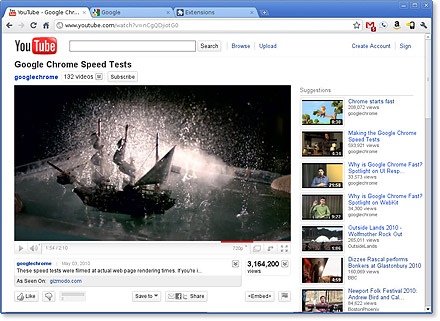
1) Google Chrome : Google Chrome runs web pages and applications with lightning speed.It’s free and installs in seconds.

2) Google quick search box : You know that Quicksilver is not developing any more, Google quick search box is the best alternative and its free too. Search for anything from contacts & music to web content. Launch applications whether they’re on your computer or online.Perform actions on your results such as opening a file or sending an email.

3) Picasa : Picasa is free photo editing software from Google that makes your pictures look great. Sharing your best photos with friends and family is as easy as pressing a button.

4) Picasa Web Albums Uploader : Upload your favorite photos and videos to Picasa Web Albums.Upload photos saved on your desktop.Upload and share iPhoto albums.Share your photos and videos with friends.

5) Google Notifier : Google notifier is the notifying system for Mac. It allows you to easy access to your new Gmail messages with a quick preview of the message subject, sender, and snippet.Timely reminder for your upcoming Google Calendar events, including date, time, event title, and location.

6) Google Book Downloader : Google Book Downloader is a tool for downloading digital books from books.google.com. Give it the URL or ID of a Google Book and it will create a PDF of that book. Some books can already be downloaded from the web, but many cannot. If you see a book that has a full or limited preview but no download, Google Book Downloader can download that—or at least the parts you can read on the web.

7) Google Sketchup : Google SketchUp is the finest tool that you can use to create 3D models. You can picture anything in 3D and later share with those models with the friends.

8 ) Google Earth : Google Earth lets you fly anywhere on Earth to view satellite imagery, maps, terrain, 3D buildings, from galaxies in outer space to the canyons of the ocean. You can explore rich geographical content, save your toured places, and share with others.

9) GMDesk : GMDesk is an application that lets you run Gmail, Google Calendar, Google Docs and Google Maps as a stand-alone application to do all your mail handling, calendar event reading etc with. No need to open it up in a web browser, or have it clutter your workspace.

10) Google Voice Utility : Google Voice – Google Voice Utility helps you keep Google Voice open on the desktop and it can work on Windows, Linux & Mac. GVoice is still under development and it may contain bugs.

11) TinyCal : TinyCal is a menubar calendar with Google Calendar integration. It can show multiple months, use custom calendars, and show holidays and personal calendars. Use TinyCal to keep track of birthdays or appointments, or as a desktop calendar reference.

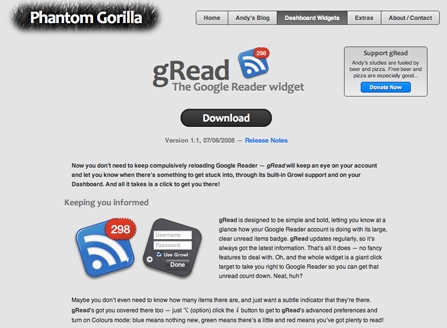
12) gRead : Now you don’t need to keep compulsively reloading Google Reader — gRead will keep an eye on your account and let you know when there’s something to get stuck into, through its built-in Growl support and on your Dashboard. And all it takes is a click to get you there.

13) GDocsUploader : GDocsUploader is a little utility to help you upload documents to Google Docs. Once you’ve logged in, uploading is as simple as dragging and dropping files onto the GDocsUploader icon. The new Adobe Air version runs on Windows, Mac, or Linux, but you will need to install Adobe Air onto your system first.

14) AdWords Editor : AdWords Editor is a free Google application for managing your ad campaigns. Use it to download your account, update your campaigns with powerful editing tools, then upload your changes to AdWords.

15) eMaps : eMaps is a application for Mac OS X that allows users to interact with Google Maps™ mapping service. eMaps provides street maps, satellite and street view imagery, driving directions, traffic info, local search for many countries around the world. Features include reverse geocoding service, the ability to create and export customized maps and save a default location view.

16) BusyCal : BusyCal is a desktop calendar that provides seamless calendar sharing and enhanced productivity tools for workgroups and individuals. BusyCal combines the calendar sharing and synchronization technology from the award winning BusySync with a beautiful desktop calendar interface that is instantly recognizable to iCal users — all in one easy to use integrated application.

17) Gmote : Gmote turns Android into a remote control for a computer, allowing users to run movies and music at a distance. It supports all of the standard remote control features such as play, pause, rewind, volume controls etc. It also has a built-in file browser that lets you select what to play.

18) gDisk : gDisk is a software that turns your GMail account into a portable hard drive so you can always have your important files accessible accross the Internet.

Desktop Widgets

19) Language Translator : Translates any text between different 41 different languages using Googles language translation service. It can even detect the source language.

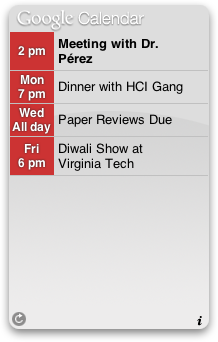
20) Google Calendar Desktop Widget : Keep an eye on today’s events on your desktop. With this dashboard widget, you don’t need to logon to Google Calendar in a dedicated browser window. Clicking on an event takes you directly to the event in Google Calendar, ready for you to edit.

21) Analytics Widget : AnalyticsWidget is a free dashboard widget for OS X that displays Google Analytics data.There are 3 types of reports : Content Overview, Visitors Overview and Traffic Sources Overview , each of these also has 3 views: a graphical main view, a table of small graphs, and a textual view.

22) Google Apps Dashboard Widget : The Google Apps Dashboard widget allows to to acces various Google Web-based applications right from your Dashboard, by using a Mac OS X Dock-like setting. Included in the widget are: Gmail, Calendar, Docs & Spreadsheets, Notebook, Page Creator, Picassa Web Albums, Blogger & Google Reader.

See more at savedelete.com