Showing posts with label technology. Show all posts

Wednesday, June 27, 2012

Best Home WiFi Routers - Summer 2012


Five Best Home Wi-Fi Routers Buying a wi-fi router these days is no easy task. Long gone are the days where one model rose above the rest: now there are routers with different features, some that focus on range, others that focus on speed, and still others with advanced features like NAS support and traffic shaping options. This week we're going to take a look at five of the best home wi-fi routers, based on your nominations.
Earlier in the week, we asked you which wireless routers you thought were the bestfor customization, range, signal strength, and features. You responded with more nominees than we could feature here, but a few models really rose out of the pack and were your clear favorites. Here they are:
Five Best Home Wi-Fi Routers

Linksys WRT54G Series

The venerable Linksys WRT54G has long been one of the most hackable wireless routers on the market, and while they're a little trickier to come by these days, they're still widely available and if you can get your hands on one, you won't find another router that supports both the DD-WRT and Tomato alternate router firmwares better and more smoothly. Even though it's an 802.11g model and lacks 802.11n, and the range and speed of some of its more modern rivals, it's a rock solid router with a well earned fan base. It may be end-of-life from Linksys' perspective, but they do keep a well-updated support page dedicated to it. There's a reason this model has its own entry here.
Five Best Home Wi-Fi Routers

Apple Airport Extreme /Express

A number of you nominated the Apple Airport Extreme and Airport Express for their simple configuration, minimal design, and remarkably low price point for what you get. It's not terribly hackable, and you're not going to buy an Airport model and go home planning to install custom firmware, but you will be able to slip an Airport Express in your pocket or suitcase and be able to set up or extend a wireless network anywhere you go (or plug it into any set of speakers to make them Airplay compatible), and you will be able to set up an Airport Extreme in a matter of minutes and have a cozy dual band 802.11n blanket over your whole house. The Express sports a pair of 10/100 Ethernet ports on the back, and the Extreme boasts four gigabit Ethernet ports for other devices. Both offer USB ports for connected devices like printers or (in the case of the Extreme) NAS devices. If you want a truly fire-and-forget router, the Airport Extreme is a good choice.
Five Best Home Wi-Fi Routers

Netgear N Series (WNDR Models)

Netgear has come a long way, and its N-series (also known by their model numbers, WNDRXXXX) wireless routers are proof. PC Mag issued the N750/WNDR4000 an Editor's Choice award (and I'm a happy owner of one!) and the N900/WNDR4500 is one of the most powerful and speedy dual-band 802.11n home routers on the market today. Many of Netgear's N-series routers are compatible with DD-WRT, but even if you're not the type to flash your router's firmware, Netgear's own firmware offers quality-of-service controls, advanced access and parental controls, support for dynamic DNS, advanced wireless security options, and offer support for NAS devices and printers connected via USB. They range in price, and many of the better ones are definitely on the high-end, but in this case you get what you pay for.
Five Best Home Wi-Fi Routers

ASUS RT Series

You may not think of ASUS when you think of wireless routers, especially if you haven't purchased a router in several years, but the ASUS RT series, specifically theASUS RT-N56 and RT-N66 models, combine great features and sharp looks into a networking package that offers dual-band 802.11n, support for connected devices like printers and NAS devices via USB, and some of the strongest signal strength and range available. Plus, most of ASUS's models support builds of DD-WRT or Tomato, so if you want even more control over the router's features, it's readily available to you. The RT-N66 even has detachable antennae that you can swap out for higher-powered versions that you can either buy (like the Mohu Bounce ) or build yourself .
Five Best Home Wi-Fi Routers

Linksys E Series

When Linksys started to phase out the WRT54G series, they started to direct customers to the E Series—their easy-to-configure (and sharp-looking) replacement models. Every member of the E Series is an 802.11n router, and many of you praised them—specifically the E4200 —for their blend of features, simple setup, range and signal strength, and the fact that many of the E-series routers are compatible with DD-WRT, so you can flash the firmware and get even more features once the router is set up the way you like. Linksys' price point is attractive as well, and even if you opt not to flash the firmware, you can very affordably buy a router that takes moments to set up and needs little maintenance after the fact. It doesn't hurt that many of Cisco's routers specifically support household features like VoIP and traffic shaping for things like torrents, putting some relatively advanced features in the hands of people who may have been intimidated by them before.
Now that you've seen the top five, it's time to put them to an all out vote to decide the winner!


No honorable mentions this week, as the next one down the line had fewer than half the nominations of the least nominated member of the top five, but if you think your favorite model got shortchanged, let us know why in the comments below! Remember, the top five are based on your most popular nominations from the call for contenders thread from earlier in the week . Share your thoughts in the comments below.
The Hive Five is based on reader nominations. As with most Hive Five posts, if your favorite was left out, it's not because we hate it—it's because it didn't get the nominations required in the call for contenders post to make the top five. We understand it's a bit of a popularity contest, but if you have a favorite, we want to hear about it. Have a suggestion for the Hive Five? Send us an email at tips+hivefive@lifehacker.com !
Photo by nrkbeta .

Friday, March 09, 2012

Windows 8 Tips for Professionals


Windows 8 Tips For Professionals


Even if you are a tech savvy user, it will take some time before you understand the workflow and functionality of Microsoft's new Windows 8 operating system. The change from a desktop-orientated system to a Metro and desktop hybrid may throw you off at first as basic features have been changed in the operating system. This guide looks at those features from a professional perspective.
Windows 8 ships with two interfaces currently. The start screen, known as Metro UI, which gets loaded when you log in, and the traditional desktop. It was previously possible to disable Metro UI to only work on the desktop. With recent changes, it is currently not possible. All the tools that worked in the Developer Preview are not working right now.
1. Switching between apps in Metro
You may have noticed that Metro apps and games start in fullscreen, and that you cannot close them down once they are started. There is no close button available, and the only way to get out of an app is to press the Windows key, or use the Charms menu which you can display when you hover your mouse cursor over the lower right edge of the screen.
You can switch between open apps and windows with Alt-Tab, which works exactly as it did under Windows 7 and previous versions of Windows. Windows 8′s Alt-Tab displays both desktop windows and Metro apps.
2. Closing Metro apps
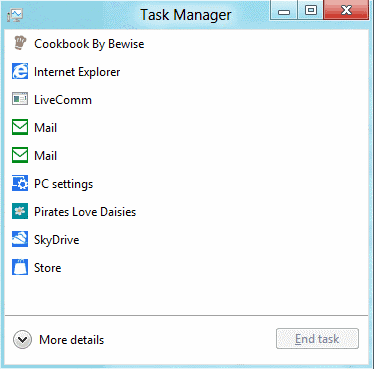
task manager
Metro apps keep running on the system even if you leave them using Alt-Tab. They use little to no resources and are basically put into sleep mode. The only option to close them down is to use Ctrl-Alt-Esc to bring up Metro UI's basic Task Manager to do that.
There are several reasons why you might want to close open apps. They first appear when you use Alt-Tab to switch between apps and windows. The more you have open, the longer it takes to find the app that you want to switch to. Privacy, and the urge to run a "clean system" may be other reasons for killing apps when you do not need to use them anymore.
You can click on More Details to display the full Task Manager instead.
3. Show administrative tools in Metro
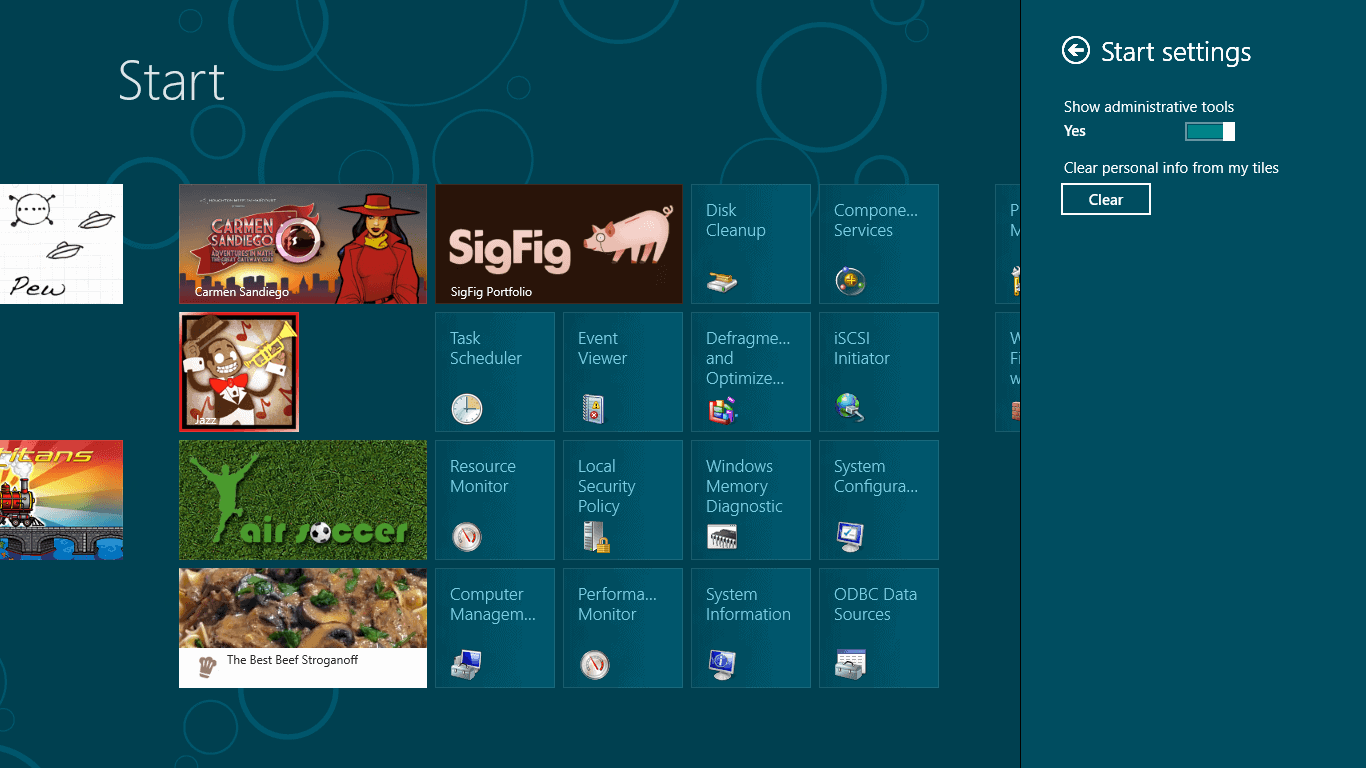
administrative tools
Administrative tools are hidden by default, but you can enable them if you know where to look. Open the Charms menu by hovering the mouse cursor over the lower right corner of the screen. Select Settings, and then Settings again under Start at the top.
Switch Enable Administrative Tools from No to Yes. This adds 18 core system tools like the Task Scheduler, Event Viewer or Computer Management to the Metro interface.
4. MSConfig without startup information
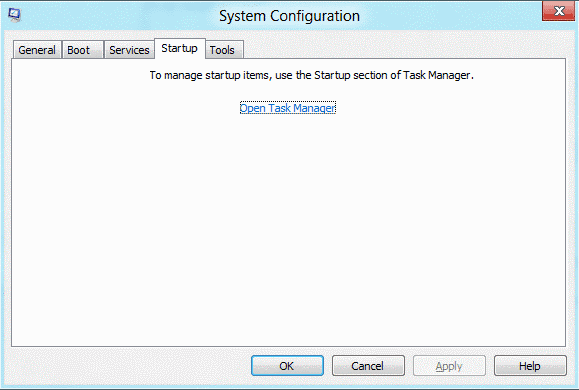
msconfig
If you have been using the built-in tool MSConfig to manage the system's startup programs, you'd be in for a surprise. Microsoft has moved the information from the system tool into the task manager. MSConfig still displays the list of services, boot information and links to tools though.
5. App History
app history
Windows keeps track of a system's application history. Apps in this regards are only Metro applications, and not desktop programs. You see the names of the apps that have eebn used, their cpu time, bandwidth and other information.
You can click on Delete Usage History to remove the resource usage information, but not the apps from the listing. It was previously possible to control the feature in the Privacy settings of the Metro Control Panel. The options were removed in the Consumer Preview.
There may be a setting in the Registry that deals with it, but I have not found it yet.
6. Synchronize settings
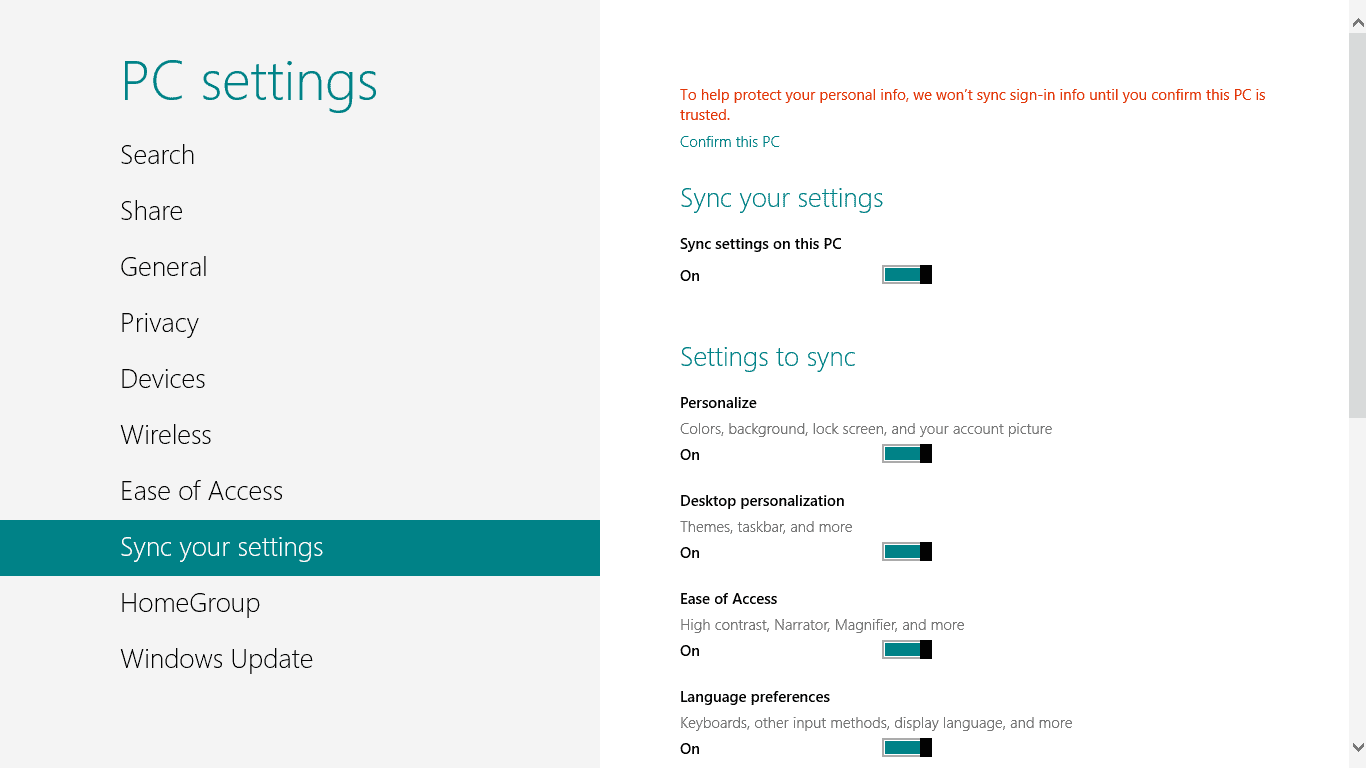
sync your settings
You may remember the announcement that Windows 8 can synchronize customized settings like themes or account pictures with the cloud, to make them available on every Windows 8 PC the user signs in with the same account.
You can configure the feature for each PC individually in the Sync your settings menu in the Metro Control Panel. To get there bring up the Charms menu, select Settings, then More PC Settings. Scroll down until you find Sync your Settings.
You can switch the synchronization feature off for the PC, or customize which information you want synced.
7. Just Type
type and run
When in Metro UI, you can just type to launch programs. Windows will not display all files matching the term you enter. This may be confusing at first, as regedit for instance returns no results. You can still hit the enter key to launch the Registry Editor, or other tools like msconfig in Metro.
The type, search and run feature only works on the Metro start page. It won't work if you have a Metro app open, and it won't work on the desktop as well.
8. Drag and Drop
You can drag and drop Metro apps around to sort them the way you want them to be in. This works ok-ish with a mouse or touch screen, and not so well if you only have a trackpad at your disposal. There does not seem to be a way to drag and drop multiple items at once either.
Still, if you want particular apps to appear in different locations, drag and drop is your only option to achieve that goal.
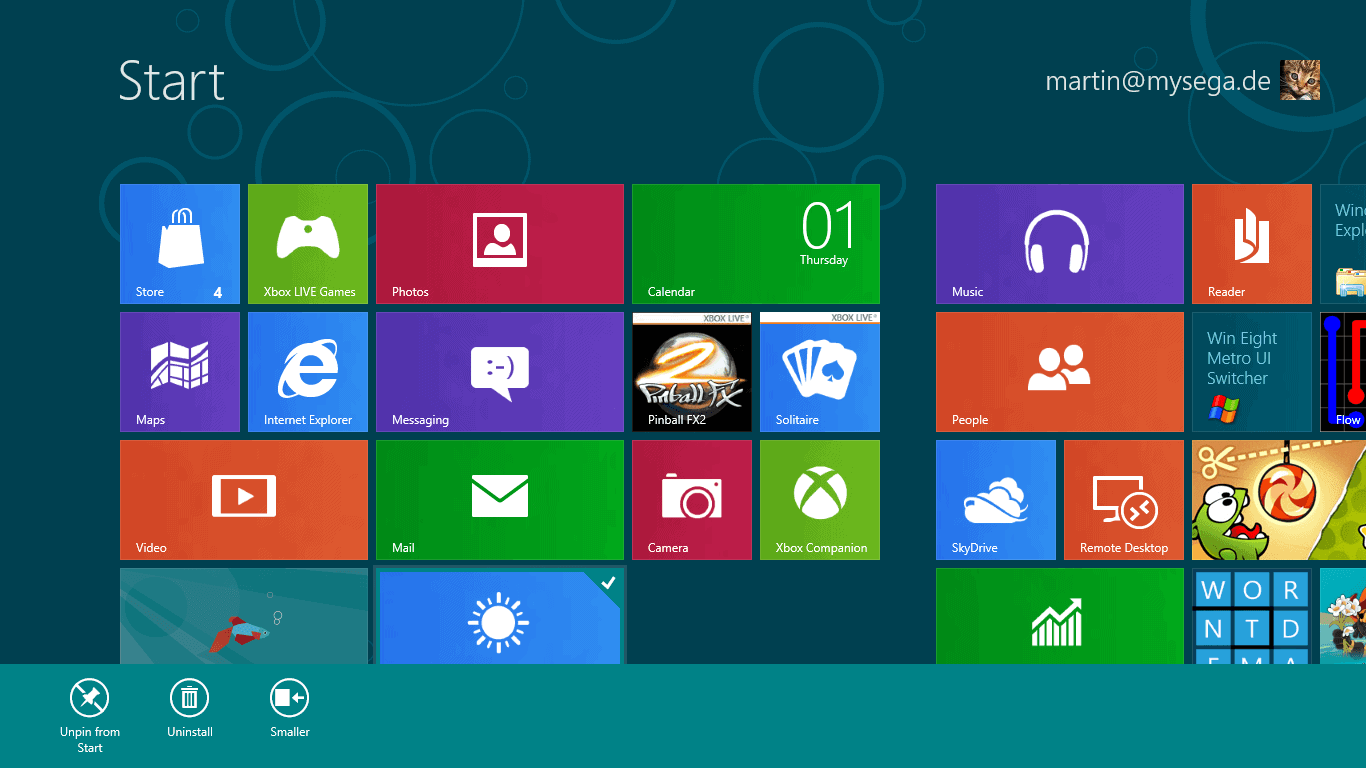
9. Uninstalling Apps
uninstall apps
If you do not use some of the default apps, or want to uninstall apps that you have tried out, you can do so quite easily. Right-click the app that you want to uninstall, and select the Uninstall option from the footer menu afterwards.
You can alternatively unpin the app from the start screen, which would keep it on the system, accessible through search for instance, but not on the Metro UI start screen.
10. Making apps larger or smaller
app size
You may have noticed that some apps take up more space on the start screen than others. Some apps are displayed with twice the size of others. A right-click and the selection of smaller or larger decreases or increases the size of the app on the screen.
11. Double-click to zoom out
A double-click on the Charms icon in the lower right corner of the screen zooms out of the start page. This makes it easier to navigate if you have lots of apps installed. You can also drag and drop blocks around instead of single apps.
12. Turn of Windows Store
Windows Store can be disabled in the Group Policy Editor. Type gpedit.msc in Metro and press enter. Now go to User Configuration > Administrative Templates > Windows Components > Store, and enable Turn off the Store application (or under Computer Configuration and the same path).

Web Security: HTTPS Available from EFF (Chrome and Firefox)


HTTPS Everywhere Keeps Your Personal Information Safe on Over 1,400 Sites, Available for Firefox and Chrome
Chrome/Firefox: HTTPS Everywhere is a simple extension that, with just a one-click installation, can seriously increase your security on over 1,400 web sites by encrypting your connection.
We've talked before about HTTPS, what it does, and why you should use it . Many sites, like Gmail (and Facebook, with caveats ) have options that let you browse with HTTPS always turned on, but the HTTPS Everywhere extension makes this simpler. Instead of turning it on for individual sites, HTTPS Everywhere will automatically routes all your data through a secure connection on any of its 1,400 supported web sites, keeping your information safe and away from prying eyes—in short, it's an extension everyone should have installed.
HTTPS Everywhere has long been a favorite of Firefox users , but today marks the first time Chrome users can get in on the fun, with a new beta version of the extension that quietly sits in your address bar and switches you to HTTPS whenever possible. The Firefox version has also been updated to 2.0, which adds a new feature called the Observatory which, when turned on, detects encryption weaknesses and will notify you when you're browsing a site with a security vulnerability. To read more about the new version of the extension and install it in your browser, hit the link below.
HTTPS Everywhere is a free extension, works wherever Chrome and Firefox do.
New 'HTTPS Everywhere' Version Warns Users About Web Security Holes | Electronic Frontier Foundation

Thursday, February 23, 2012

Tips and Tricks: Protect Your Online Privacy with These Tips


It's no secret that there's big money to be made in violating your privacy. Companies will pay big bucks to learn more about you, and service providers on the web are eager to get their hands on as much information about you as possible.
So what do you do? How do you keep your information out of everyone else's hands? Here's a guide to surfing the web while keeping your privacy intact.
The adage goes, "If you're not paying for a service, you're the product, not the customer," and it's never been more true. Every day more news breaks about a new company that uploads your address book to their servers , skirts in-browser privacy protection , and tracks your every move on the web to learn as much about your browsing habits and activities as possible. In this post, we'll explain why you should care, and help you lock down your surfing so you can browse in peace.

Why You Should Care

Your personal information is valuable. More valuable than you might think. When we originally published our guide to stop Facebook from tracking you around the web , some people cried "So what if they track me? I'm not that important/I have nothing to hide/they just want to target ads to me and I'd rather have targeted ads over useless ones!" To help explain why this is short-sighted and a bit naive, let me share a personal story.
Before I joined the Lifehacker team, I worked at a company that traded in information. Our clients were huge companies and one of the services we offered was to collect information about people, their demographics, income, and habits, and then roll it up so they could get a complete picture about who you are and how to convince you to buy their products. In some cases, we designed web sites and campaigns to convince you to provide even more information in exchange for a coupon, discount, or the simple promise of other of those. It works very, very well.
The real money is in taking your data and shacking up with third parties to help themcome up with new ways to convince you to spend money, sign up for services, and give up more information. Relevant ads are nice, but the real value in your data exists where you won't see it until you're too tempted by the offer to know where it came from, whether it's a coupon in your mailbox or a new daily deal site with incredible bargains tailored to your desires. It all sounds good until you realize the only thing you have to trade for such "exciting" bargains is everything personal about you: your age, income, family's ages and income, medical history, dietary habits, favorite web sites, your birthday…the list goes on. It would be fine if you decided to give up this information for a tangible benefit, but you may never see a benefit aside from an ad, and no one's including you in the decision. Here's how to take back that control.

Click for instructions for your browser of choice:


How to Stop Trackers from Following Where You're Browsing with Chrome

If you're a Chrome user, there are tons of great add-ons and tools designed to help you uncover which sites transmit data to third parties without your knowledge, which third parties are talking about you, and which third parties are tracking your activity across sites. This list isn't targeted to a specific social network or company—instead, these extensions can help you with multiple offenders.
  • Adblock Plus - We've discussed AdBlock plus several times, but there's never been a better time to install it than now. For extra protection, one-click installs the Antisocial subscription for AdBlock. With it, you can banish social networks like Facebook, Twitter, and Google+ from transmitting data about you after you leave those sites, even if the page you visit has a social plugin on it.
  • Ghostery - Ghostery does an excellent job at blocking the invisible tracking cookies and plug-ins on many web sites, showing it all to you, and then giving you the choice whether you want to block them one-by-one, or all together so you'll never worry about them again. The best part about Ghostery is that it's not just limited to social networks, but will also catch and show you ad-networks and web publishers as well.
  • ScriptNo for Chrome - ScriptNo is much like Ghostery in that any scripts running on any site you visit will sound its alarms. The difference is that while Ghostery is a bit more exclusive about the types of information it alerts you to, ScriptNo will sound the alarm at just about everything, which will break a ton of websites. You'll visit the site, half of it won't load or work, and you'll have to selectively enable scripts until it's usable. Still, its intuitive interface will help you choose which scripts on a page you'd like to allow and which you'd like to block without sacrificing the actual content on the page you'd like to read.
  • Do Not Track Plus - The "Do Not Track" feature that most browsers have is useful, but if you want to beef them up, the previously mentioned Do Not Track Plus extension puts a stop to third-party data exchanges, like when you visit a site like ours that has Facebook and Google+ buttons on it. By default, your browser will tell the network that you're on a site with those buttons—with the extension installed, no information is sent until you choose to click one. Think of it as opt-in social sharing, instead of all-in.
Ghostery, AdBlock Plus, and Do Not Track are the ones you'll need the most. ScriptNo is a bit more advanced, and may take some getting used to. In addition to installing extensions, make sure you practice basic browser maintenance that keeps your browser running smoothly and protects your privacy at the same time. Head into Chrome's Advanced Content Settings, and make sure you have third-party cookies blocked and all cookies set to clear after browsing sessions. Log out of social networks and web services when you're finished using them instead of just leaving them perpetually logged in, and use Chrome's "Incognito Mode" whenever you're concerned about privacy.

How to Stop Trackers from Following Where You're Browsing with Firefox

Many of the essential privacy extensions for Firefox are from the same developers who made their Chrome counterparts, and they work in similar fashion.
  • Adblock Plus - AdBlock Plus is just as essential in Firefox as it is in Chrome, as is the Antisocial subscription, which you can install at the Antisocial site. The extension and the subscription together are a powerful combination to remove annoying ads from sites you love, retain the ones that don't bother you, and keep ads and plug-ins from sending data about you without your explicit consent.
  • Ghostery - Ghostery is also available for Firefox, and gives you the same information about the scripts, cookies, and trackers under every site you visit. Click the icon in your status bar to see what information a given site is collecting and sending about you, and you can pick and choose what to allow or what to block.
  • Do Not Track Plus - Do Not Track Plus is also available for Firefox, and works the same way as the Chrome version.
  • NoScript - NoScript is a great extension and provides you an incredible amount of information about what's happening behind the scenes on any site that you visit—the trouble with it is that that information can be overwhelming, and if you don't allow certain things, the site simply won't work until you do. I have a bit of a love/hate relationship with NoScript for that reason, but if you're serious about not letting anything run on a site without your permission, this is the tool for you.
  • Priv3 - Although it's only available for Firefox, this experimental extension from researchers at Rutgers University and the International Computer Science Institute (ICSI) will protect you from third-party cookies set by Facebook, Twitter, Google+, and LinkedIn. We've mentioned it before , and I still have it installed myself. Like Do Not Track Plus, it doesn't remove elements from a page—it simply makes them inactive until you interact with them.
We'd say Ghostery, AdBlock Plus, and Priv3 are the essentials here. Do Not Track Plus and Priv3 cover some of the same territory, so you can go either way there, and as with Chrome, NoScript is for advanced users looking for more granular control. Firefox's "Do Not Track" feature is worth enabling as well, even if many sites circumvent it with well-placed cookies and social plug-ins that are all but required if a site wants a social media presence or solid placement in search results these days. Additionally, make yourself familiar with Firefox's privacy and content settings. As with any browser, we suggest you log out of services when you're finished, and set Firefox to clear your private data, cookies, and browsing history when you close the browser. If you're more worried about some sites than others, you can always just clear thosecookies when you log out.

How to Stop Trackers from Following Where You're Browsing with Internet Explorer, Safari, and Opera

Firefox and Chrome may get the spotlight in the browser wars, but those of you using Safari, IE, or Opera aren't totally safe just by virtue of your browser choice. Just this week, Google was caught with its hands in the cookie jar (no pun intended) circumventing cookie protection controls in Internet Explorer 9. Nik Cubrilovic has an excellent writeup of the situation , and he points out that they're not alone by any means. In response, Microsoft has published a tracking protection add-in for IE9 to stop them.
Regardless of your browser, the same types of basic maintenance we mentioned are in order. Do Not Track Plus is available for Safari and IE users, there's a special build of AdBlock for Safari . for Opera , and even Internet Explorer . NoScript or ScriptNo fans can use NotScripts for Opera to get the same effect. These are a few examples, but look around—its likely that while some of the extensions mentioned above may not be available for your preferred browser, someone's taken the initiative to write a similar add-on that gets the job done.

Mobile Browsing

Mobile browsing is a new frontier. There are dozens of mobile browsers, and even though most people use the one included on their device, there are few tools to protect your privacy by comparison to the desktop. Check to see if your preferred browser has a "privacy mode" that you can use while browsing, or when you're logged in to social networks and other web services. Try to keep your social network use inside the apps developed for it, and—as always—make sure to clear your private data regularly.
Some mobile browsers have private modes and the ability to automatically clear your private data built in, like Firefox for Android , Atomic Web Browser , and Dolphin Browser for both iOS and Android. Considering Dolphin is our pick for the best Android browser and Atomic is our favorite for iOS , they're worth downloading.

Extreme Measures

If none of these extensions make you feel any better, or you want to take protecting your privacy and personal data to the next level, it's time to break out the big guns. One tip that came up during our last discussion about Facebook was to use a completely separate web browser just for logged-in social networks and web services, and another browser for potentially sensitive browsing, like your internet shopping, banking, and other personal activities. If you have some time to put into it, check outour guide to browsing without leaving a trace , which was written for Firefox, but can easily be adapted to any browser you use.
If you're really tired of companies tracking you and trading in your personal information, you always have the option to just provide false information. The same way you might give a fake phone number or address to a supermarket card sign-up sheet, you can scrub or change personal details about yourself from your social network profiles, Google accounts, Windows Live account, and others.
Change your birthdate, or your first name. Set your phone number a digit off, or omit your apartment number when asked for your street address. We've talked about how to disappear before , and carefully examine the privacy and account settings for the web services you use. Keep in mind that some of this goes against the terms of service for those companies and services—they have a vested interest in knowing the real you, after all, so tread carefully and tread lightly if you want to go the "make yourself anonymous" route. Worst case, start closing accounts with offending services, and migrate to other, more privacy-friendly options.
These are just a few tips that won't significantly change your browsing experience, but can go a long way toward protecting your privacy. This issue isn't going anywhere, and as your personal information becomes more valuable and there are more ways to keep it away from prying eyes, you'll see more news of companies finding ways to eke out every bit of data from you and the sites you use. Some of these methods are more intrusive than others, and some of them may turn you off entirely, but the important thing is that they all give you control over how you experience the web. When you embrace your privacy, you become engaged with the services you use. With a little effort and the right tools, you can make the web more opt-in than it is opt-out.

Microsoft, Google and Netflix want to add DRM-hooks to W3C HTML5 standard


Microsoft, Google and Netflix want to add DRM-hooks to W3C HTML5 standard


A proposed anti-copying extension for the WC3's standard for HTML5 has been submitted by representatives of Google, Microsoft and Netflix. The authors take pains to note that this isn't "DRM" — because it doesn't attempt to hide keys and other secrets from the user — but in a mailing list post, they later admitted that this could be "addressed" by running the browser inside a proprietary hardware system that hideverything from the user.

Other WC3 members — including another prominent Googler, Ian Hickson — have called for the withdrawal of the proposal. Hickson called it "unethical." I agree, and would add "disingenuous," too, since the proposal disclaims DRM while clearly being intended to form a critical part of a DRM system.
In an era where browsers are increasingly the system of choice for compromising users' security and privacy, it is nothing short of madness to contemplate adding extensions to HTML standards that contemplate designing devices and software to deliberately hide their workings from users, and to prevent users from seeing what they're doing and changing that behavior if it isn't in their interests.
Writing on Ars Technica, Ryan Paul gives a good blow-by-blow look at the way that this extension is being treated in the W3C:
Mozilla's Robert O'Callahan warned that the pressure to provide DRM in browsers might lead to a situation where major browser vendors and content providers attempt to push forward a suboptimal solution without considering the implications for other major stakeholders.
Some of the discussion surrounding the Encrypted Media proposal seem to validate his concerns. Mozilla's Chris Pearce commented on the issue in a message on the W3C HTML mailing list and asked for additional details to shed light on whether the intended content protection scheme could be supported in an open source application.
"Can you highlight how robust content protection can be implemented in an open source webrowser?" he asked. "How do you guard against an open source web browser simply being patched to write the frames/samples to disk to enable (presumably illegal) redistribution of the protected content?"
Netflix's Mark Watson responded to the message and acknowledged that strong copy protection can't be implemented in an open source Web browser. He deflected the issue by saying that copy protection mechanisms can be implemented in hardware, and that such hardware can be used by open source browsers.
"Unethical" HTML video copy protection proposal draws criticism from W3C reps(Thanks, Rob! )