Showing posts with label security. Show all posts

Wednesday, June 27, 2012

Best Home WiFi Routers - Summer 2012


Five Best Home Wi-Fi Routers Buying a wi-fi router these days is no easy task. Long gone are the days where one model rose above the rest: now there are routers with different features, some that focus on range, others that focus on speed, and still others with advanced features like NAS support and traffic shaping options. This week we're going to take a look at five of the best home wi-fi routers, based on your nominations.
Earlier in the week, we asked you which wireless routers you thought were the bestfor customization, range, signal strength, and features. You responded with more nominees than we could feature here, but a few models really rose out of the pack and were your clear favorites. Here they are:
Five Best Home Wi-Fi Routers

Linksys WRT54G Series

The venerable Linksys WRT54G has long been one of the most hackable wireless routers on the market, and while they're a little trickier to come by these days, they're still widely available and if you can get your hands on one, you won't find another router that supports both the DD-WRT and Tomato alternate router firmwares better and more smoothly. Even though it's an 802.11g model and lacks 802.11n, and the range and speed of some of its more modern rivals, it's a rock solid router with a well earned fan base. It may be end-of-life from Linksys' perspective, but they do keep a well-updated support page dedicated to it. There's a reason this model has its own entry here.
Five Best Home Wi-Fi Routers

Apple Airport Extreme /Express

A number of you nominated the Apple Airport Extreme and Airport Express for their simple configuration, minimal design, and remarkably low price point for what you get. It's not terribly hackable, and you're not going to buy an Airport model and go home planning to install custom firmware, but you will be able to slip an Airport Express in your pocket or suitcase and be able to set up or extend a wireless network anywhere you go (or plug it into any set of speakers to make them Airplay compatible), and you will be able to set up an Airport Extreme in a matter of minutes and have a cozy dual band 802.11n blanket over your whole house. The Express sports a pair of 10/100 Ethernet ports on the back, and the Extreme boasts four gigabit Ethernet ports for other devices. Both offer USB ports for connected devices like printers or (in the case of the Extreme) NAS devices. If you want a truly fire-and-forget router, the Airport Extreme is a good choice.
Five Best Home Wi-Fi Routers

Netgear N Series (WNDR Models)

Netgear has come a long way, and its N-series (also known by their model numbers, WNDRXXXX) wireless routers are proof. PC Mag issued the N750/WNDR4000 an Editor's Choice award (and I'm a happy owner of one!) and the N900/WNDR4500 is one of the most powerful and speedy dual-band 802.11n home routers on the market today. Many of Netgear's N-series routers are compatible with DD-WRT, but even if you're not the type to flash your router's firmware, Netgear's own firmware offers quality-of-service controls, advanced access and parental controls, support for dynamic DNS, advanced wireless security options, and offer support for NAS devices and printers connected via USB. They range in price, and many of the better ones are definitely on the high-end, but in this case you get what you pay for.
Five Best Home Wi-Fi Routers

ASUS RT Series

You may not think of ASUS when you think of wireless routers, especially if you haven't purchased a router in several years, but the ASUS RT series, specifically theASUS RT-N56 and RT-N66 models, combine great features and sharp looks into a networking package that offers dual-band 802.11n, support for connected devices like printers and NAS devices via USB, and some of the strongest signal strength and range available. Plus, most of ASUS's models support builds of DD-WRT or Tomato, so if you want even more control over the router's features, it's readily available to you. The RT-N66 even has detachable antennae that you can swap out for higher-powered versions that you can either buy (like the Mohu Bounce ) or build yourself .
Five Best Home Wi-Fi Routers

Linksys E Series

When Linksys started to phase out the WRT54G series, they started to direct customers to the E Series—their easy-to-configure (and sharp-looking) replacement models. Every member of the E Series is an 802.11n router, and many of you praised them—specifically the E4200 —for their blend of features, simple setup, range and signal strength, and the fact that many of the E-series routers are compatible with DD-WRT, so you can flash the firmware and get even more features once the router is set up the way you like. Linksys' price point is attractive as well, and even if you opt not to flash the firmware, you can very affordably buy a router that takes moments to set up and needs little maintenance after the fact. It doesn't hurt that many of Cisco's routers specifically support household features like VoIP and traffic shaping for things like torrents, putting some relatively advanced features in the hands of people who may have been intimidated by them before.
Now that you've seen the top five, it's time to put them to an all out vote to decide the winner!


No honorable mentions this week, as the next one down the line had fewer than half the nominations of the least nominated member of the top five, but if you think your favorite model got shortchanged, let us know why in the comments below! Remember, the top five are based on your most popular nominations from the call for contenders thread from earlier in the week . Share your thoughts in the comments below.
The Hive Five is based on reader nominations. As with most Hive Five posts, if your favorite was left out, it's not because we hate it—it's because it didn't get the nominations required in the call for contenders post to make the top five. We understand it's a bit of a popularity contest, but if you have a favorite, we want to hear about it. Have a suggestion for the Hive Five? Send us an email at tips+hivefive@lifehacker.com !
Photo by nrkbeta .

Friday, March 09, 2012

Windows 8 Tips for Professionals


Windows 8 Tips For Professionals


Even if you are a tech savvy user, it will take some time before you understand the workflow and functionality of Microsoft's new Windows 8 operating system. The change from a desktop-orientated system to a Metro and desktop hybrid may throw you off at first as basic features have been changed in the operating system. This guide looks at those features from a professional perspective.
Windows 8 ships with two interfaces currently. The start screen, known as Metro UI, which gets loaded when you log in, and the traditional desktop. It was previously possible to disable Metro UI to only work on the desktop. With recent changes, it is currently not possible. All the tools that worked in the Developer Preview are not working right now.
1. Switching between apps in Metro
You may have noticed that Metro apps and games start in fullscreen, and that you cannot close them down once they are started. There is no close button available, and the only way to get out of an app is to press the Windows key, or use the Charms menu which you can display when you hover your mouse cursor over the lower right edge of the screen.
You can switch between open apps and windows with Alt-Tab, which works exactly as it did under Windows 7 and previous versions of Windows. Windows 8′s Alt-Tab displays both desktop windows and Metro apps.
2. Closing Metro apps
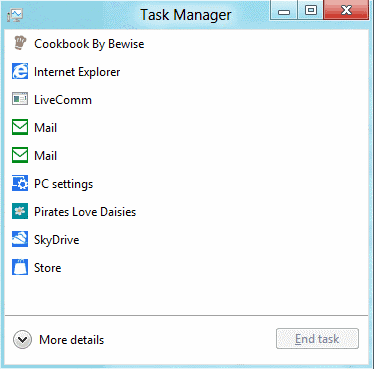
task manager
Metro apps keep running on the system even if you leave them using Alt-Tab. They use little to no resources and are basically put into sleep mode. The only option to close them down is to use Ctrl-Alt-Esc to bring up Metro UI's basic Task Manager to do that.
There are several reasons why you might want to close open apps. They first appear when you use Alt-Tab to switch between apps and windows. The more you have open, the longer it takes to find the app that you want to switch to. Privacy, and the urge to run a "clean system" may be other reasons for killing apps when you do not need to use them anymore.
You can click on More Details to display the full Task Manager instead.
3. Show administrative tools in Metro
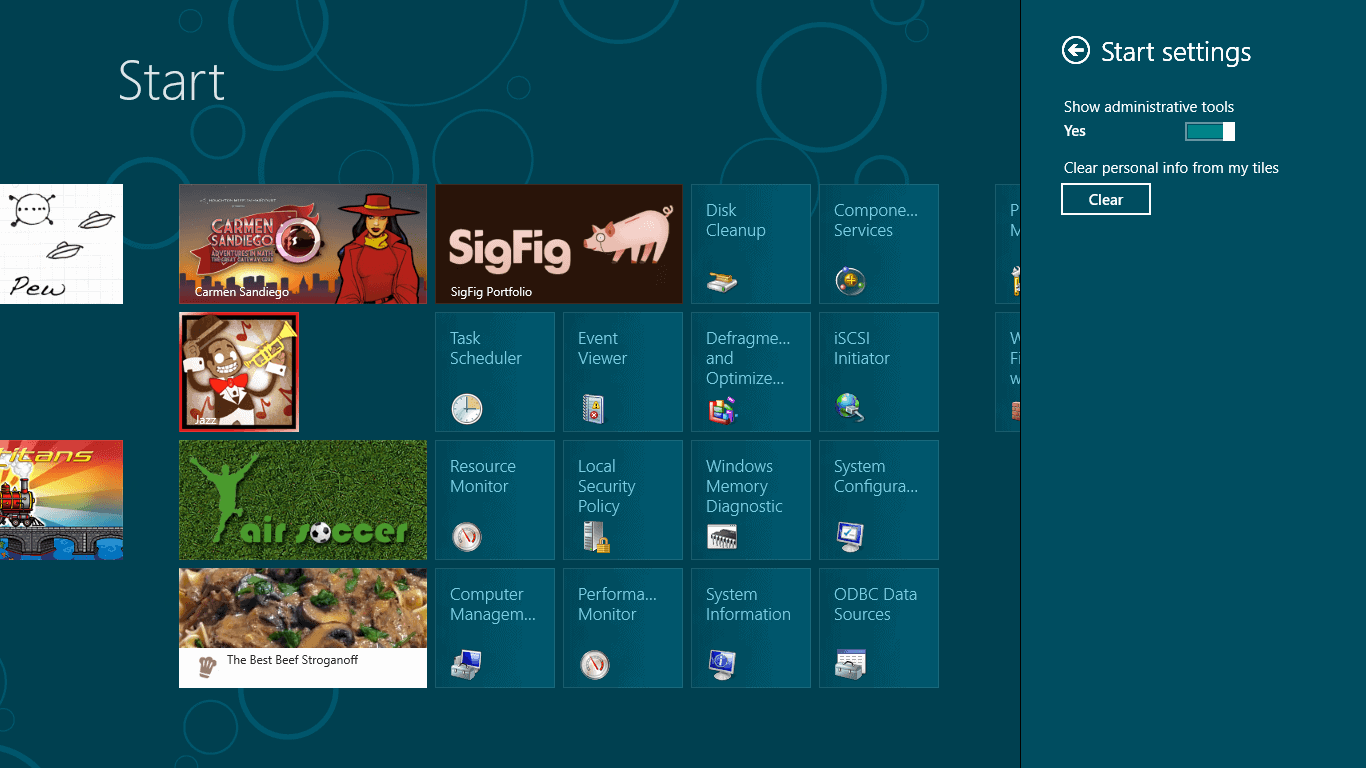
administrative tools
Administrative tools are hidden by default, but you can enable them if you know where to look. Open the Charms menu by hovering the mouse cursor over the lower right corner of the screen. Select Settings, and then Settings again under Start at the top.
Switch Enable Administrative Tools from No to Yes. This adds 18 core system tools like the Task Scheduler, Event Viewer or Computer Management to the Metro interface.
4. MSConfig without startup information
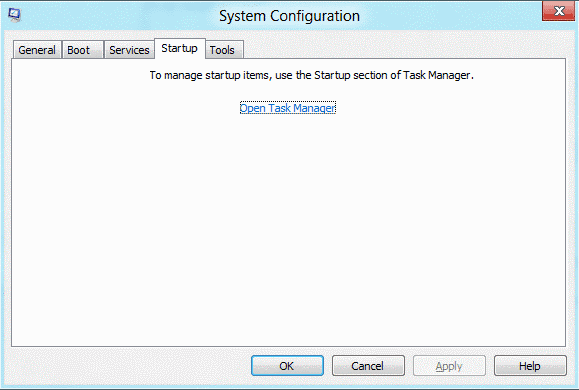
msconfig
If you have been using the built-in tool MSConfig to manage the system's startup programs, you'd be in for a surprise. Microsoft has moved the information from the system tool into the task manager. MSConfig still displays the list of services, boot information and links to tools though.
5. App History
app history
Windows keeps track of a system's application history. Apps in this regards are only Metro applications, and not desktop programs. You see the names of the apps that have eebn used, their cpu time, bandwidth and other information.
You can click on Delete Usage History to remove the resource usage information, but not the apps from the listing. It was previously possible to control the feature in the Privacy settings of the Metro Control Panel. The options were removed in the Consumer Preview.
There may be a setting in the Registry that deals with it, but I have not found it yet.
6. Synchronize settings
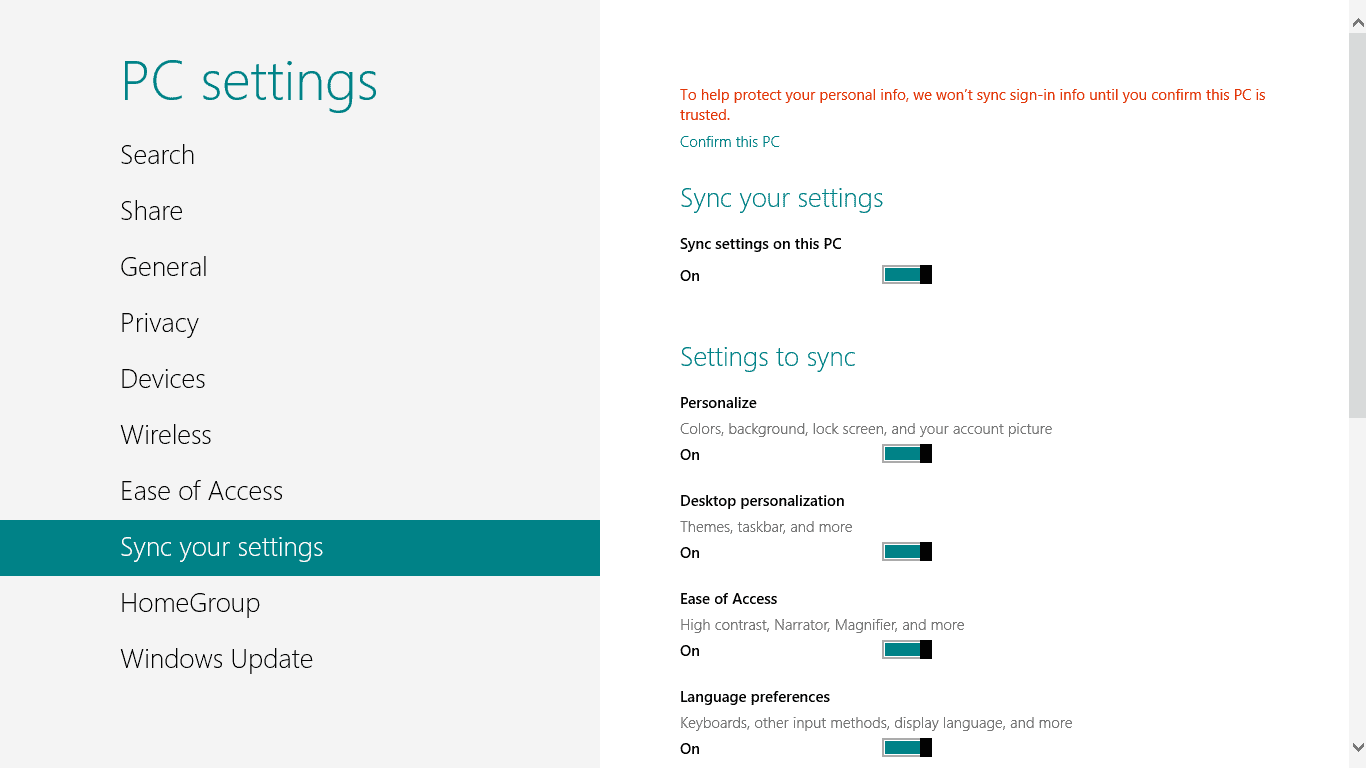
sync your settings
You may remember the announcement that Windows 8 can synchronize customized settings like themes or account pictures with the cloud, to make them available on every Windows 8 PC the user signs in with the same account.
You can configure the feature for each PC individually in the Sync your settings menu in the Metro Control Panel. To get there bring up the Charms menu, select Settings, then More PC Settings. Scroll down until you find Sync your Settings.
You can switch the synchronization feature off for the PC, or customize which information you want synced.
7. Just Type
type and run
When in Metro UI, you can just type to launch programs. Windows will not display all files matching the term you enter. This may be confusing at first, as regedit for instance returns no results. You can still hit the enter key to launch the Registry Editor, or other tools like msconfig in Metro.
The type, search and run feature only works on the Metro start page. It won't work if you have a Metro app open, and it won't work on the desktop as well.
8. Drag and Drop
You can drag and drop Metro apps around to sort them the way you want them to be in. This works ok-ish with a mouse or touch screen, and not so well if you only have a trackpad at your disposal. There does not seem to be a way to drag and drop multiple items at once either.
Still, if you want particular apps to appear in different locations, drag and drop is your only option to achieve that goal.
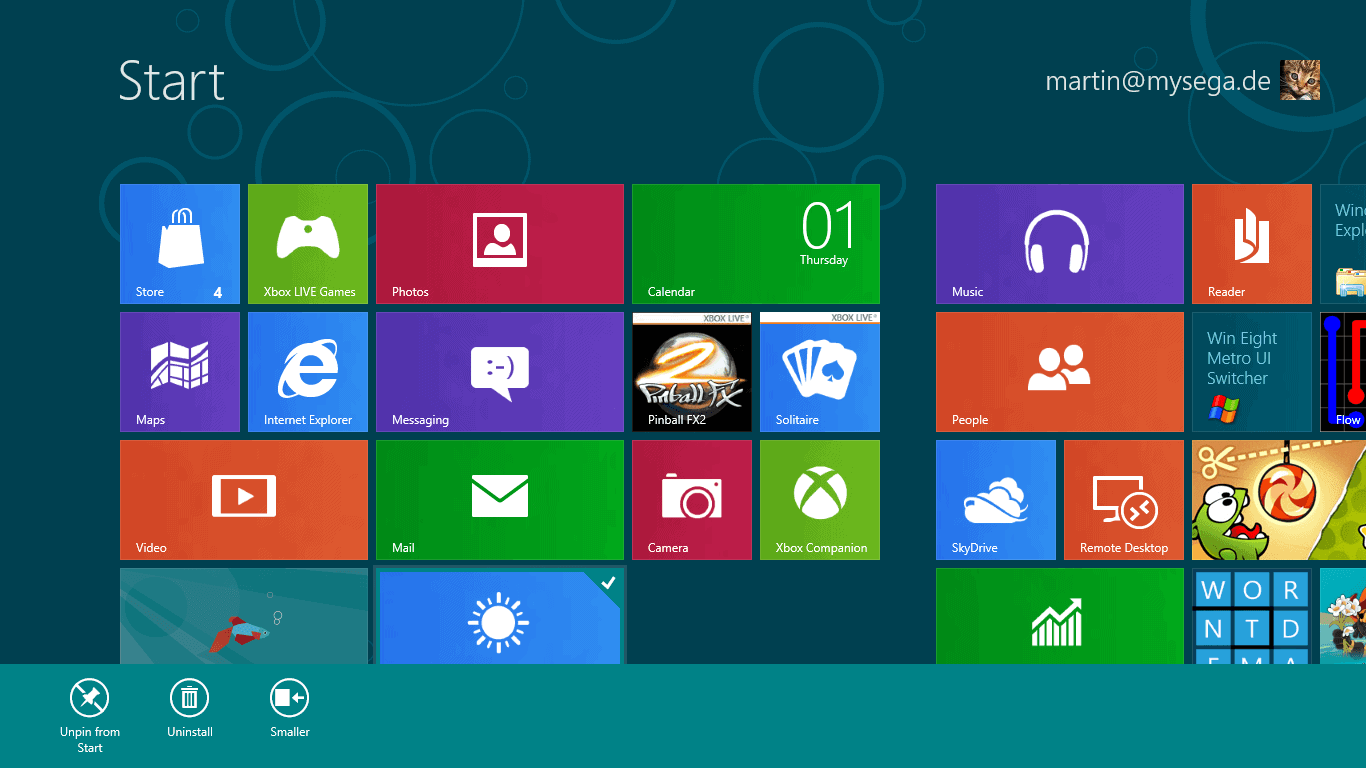
9. Uninstalling Apps
uninstall apps
If you do not use some of the default apps, or want to uninstall apps that you have tried out, you can do so quite easily. Right-click the app that you want to uninstall, and select the Uninstall option from the footer menu afterwards.
You can alternatively unpin the app from the start screen, which would keep it on the system, accessible through search for instance, but not on the Metro UI start screen.
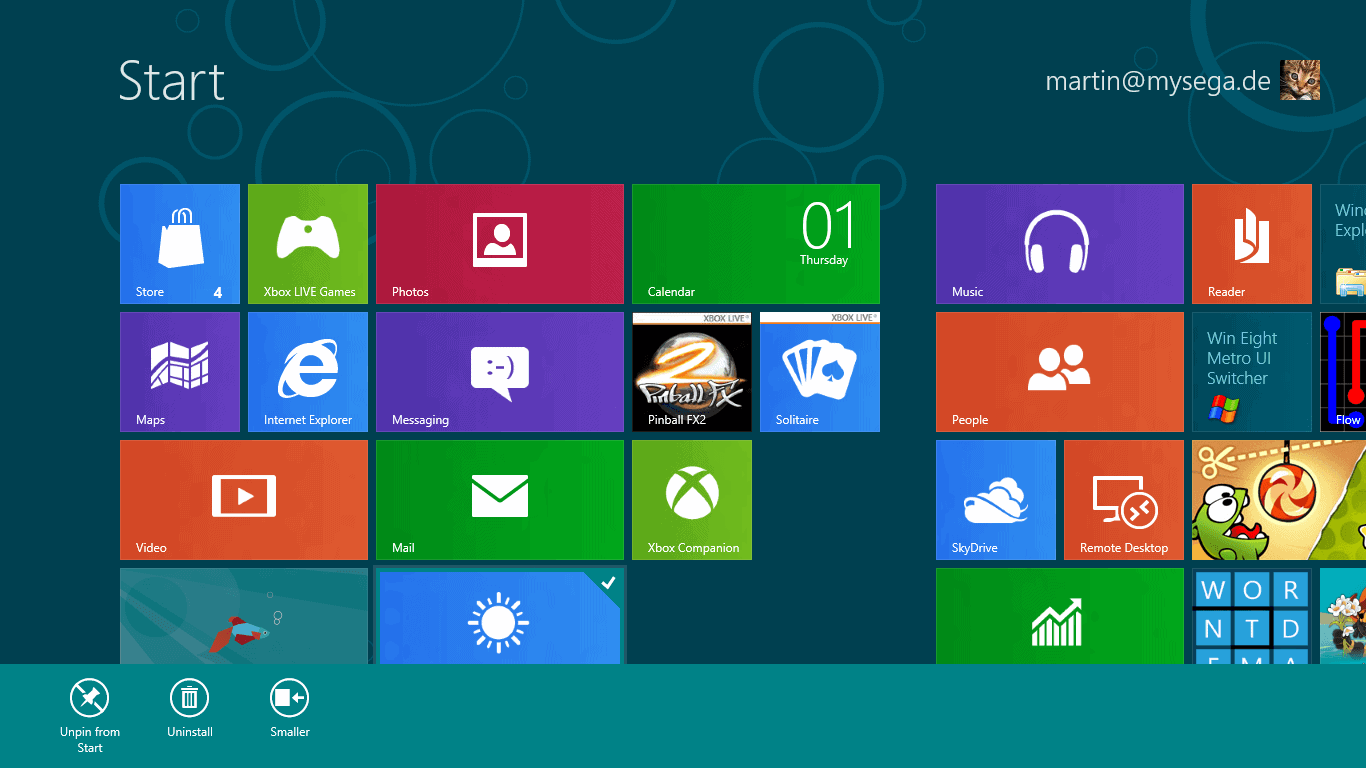
10. Making apps larger or smaller
app size
You may have noticed that some apps take up more space on the start screen than others. Some apps are displayed with twice the size of others. A right-click and the selection of smaller or larger decreases or increases the size of the app on the screen.
11. Double-click to zoom out
A double-click on the Charms icon in the lower right corner of the screen zooms out of the start page. This makes it easier to navigate if you have lots of apps installed. You can also drag and drop blocks around instead of single apps.
12. Turn of Windows Store
Windows Store can be disabled in the Group Policy Editor. Type gpedit.msc in Metro and press enter. Now go to User Configuration > Administrative Templates > Windows Components > Store, and enable Turn off the Store application (or under Computer Configuration and the same path).

Web Security: HTTPS Available from EFF (Chrome and Firefox)


HTTPS Everywhere Keeps Your Personal Information Safe on Over 1,400 Sites, Available for Firefox and Chrome
Chrome/Firefox: HTTPS Everywhere is a simple extension that, with just a one-click installation, can seriously increase your security on over 1,400 web sites by encrypting your connection.
We've talked before about HTTPS, what it does, and why you should use it . Many sites, like Gmail (and Facebook, with caveats ) have options that let you browse with HTTPS always turned on, but the HTTPS Everywhere extension makes this simpler. Instead of turning it on for individual sites, HTTPS Everywhere will automatically routes all your data through a secure connection on any of its 1,400 supported web sites, keeping your information safe and away from prying eyes—in short, it's an extension everyone should have installed.
HTTPS Everywhere has long been a favorite of Firefox users , but today marks the first time Chrome users can get in on the fun, with a new beta version of the extension that quietly sits in your address bar and switches you to HTTPS whenever possible. The Firefox version has also been updated to 2.0, which adds a new feature called the Observatory which, when turned on, detects encryption weaknesses and will notify you when you're browsing a site with a security vulnerability. To read more about the new version of the extension and install it in your browser, hit the link below.
HTTPS Everywhere is a free extension, works wherever Chrome and Firefox do.
New 'HTTPS Everywhere' Version Warns Users About Web Security Holes | Electronic Frontier Foundation

Thursday, February 23, 2012

Microsoft, Google and Netflix want to add DRM-hooks to W3C HTML5 standard


Microsoft, Google and Netflix want to add DRM-hooks to W3C HTML5 standard


A proposed anti-copying extension for the WC3's standard for HTML5 has been submitted by representatives of Google, Microsoft and Netflix. The authors take pains to note that this isn't "DRM" — because it doesn't attempt to hide keys and other secrets from the user — but in a mailing list post, they later admitted that this could be "addressed" by running the browser inside a proprietary hardware system that hideverything from the user.

Other WC3 members — including another prominent Googler, Ian Hickson — have called for the withdrawal of the proposal. Hickson called it "unethical." I agree, and would add "disingenuous," too, since the proposal disclaims DRM while clearly being intended to form a critical part of a DRM system.
In an era where browsers are increasingly the system of choice for compromising users' security and privacy, it is nothing short of madness to contemplate adding extensions to HTML standards that contemplate designing devices and software to deliberately hide their workings from users, and to prevent users from seeing what they're doing and changing that behavior if it isn't in their interests.
Writing on Ars Technica, Ryan Paul gives a good blow-by-blow look at the way that this extension is being treated in the W3C:
Mozilla's Robert O'Callahan warned that the pressure to provide DRM in browsers might lead to a situation where major browser vendors and content providers attempt to push forward a suboptimal solution without considering the implications for other major stakeholders.
Some of the discussion surrounding the Encrypted Media proposal seem to validate his concerns. Mozilla's Chris Pearce commented on the issue in a message on the W3C HTML mailing list and asked for additional details to shed light on whether the intended content protection scheme could be supported in an open source application.
"Can you highlight how robust content protection can be implemented in an open source webrowser?" he asked. "How do you guard against an open source web browser simply being patched to write the frames/samples to disk to enable (presumably illegal) redistribution of the protected content?"
Netflix's Mark Watson responded to the message and acknowledged that strong copy protection can't be implemented in an open source Web browser. He deflected the issue by saying that copy protection mechanisms can be implemented in hardware, and that such hardware can be used by open source browsers.
"Unethical" HTML video copy protection proposal draws criticism from W3C reps(Thanks, Rob! )

DataLocker, File Encryption For Windows, Mac, iOS


With cloud hosting taking over much of what we are hosting locally right now in the next ten years or so, it becomes important to protect your remotely saved data from unauthorized access. Some cloud hosting providers encrypt the data automatically, but that is still no guarantee that your data is safe. The algorithm used might be flawed, or the company might retain the right to decrypt your data at any time. This can for instance happen when authorities ask them to do that.


The only solution to this problem is to encrypt your data on your own before you shove it into the cloud. We reviewed BoxCryptor before which added an encrypted layer around your data before it was transferred to Dropbox.
DataLocker provides a similar service. The program is available for Windows and Mac operating system, as well as mobile systems running Apple's iOS system (iPad and iPhone currently only).
You need to request the software on the developer site by filling out a form there. The download link will be in the email that you receive after filling out the form.
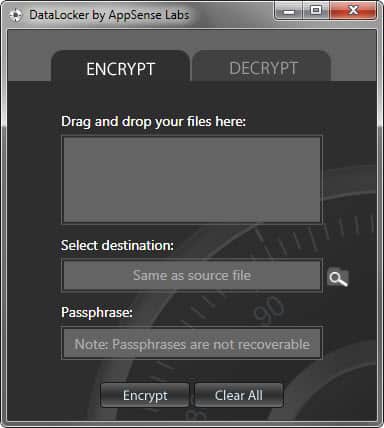
When you install the program you see a basic interface where all of the encrypting and decrypting takes place.
The program will save the encrypted files by default in the same directory the source file is stored in. This is great if you want to secure your local files. If you want to move them to the cloud, you need to manually move them into the right directory or copy them over. Doing that is not overly comfortable though, especially since you can only encrypt files and not folders and all of the files stored inside.
To encrypt files, drag and drop them into the program interface, select a password and change the destination directory if you want. Encrypted files are saved with an ALK extension on the system.
Decrypting works in the same way, only that you need to drag and drop the encrypted files into the program interface instead.
DataLocker is a simple program. It could use a few settings that would make it more usable, like the ability to encrypt folders or better automation to move encrypted files directly into the Dropbox folder.
The Windows version of the program supports both 32-bit and 64-bit editions of the operating system. It requires the Microsoft .NET Framework 4.0 to be installed on the system. (via Caschy )
Enjoyed the article? : Then sign-up for our free newsletter or RSS feed to kick off your day with the latest technology news and tips, or share the article with your friends and contacts on Facebook or Twitter.


Five Best File Encryption Tools

File encryption is your best bet if you want to keep The Man, foreign spies, or your annoying roommates out of your files. Here's a look at five of the most popular encryption tools Lifehacker readers use to lock down their files.

GNU Privacy Guard (Windows/Mac/Linux, Free)

Five Best File Encryption Tools
GNU Privacy Guard (GnuPG) is an open-source implementation of the famed Pretty Good Privacy (PGP) encryption tool—you can read the very interesting history of PGPand how GnuPG came to be here. GnuPG is a volume and individual file encryption tool with support for a dozen encryption schemes, paired keys, and expiring signatures. GnuPG doesn't only provide rock-solid local file encryption; it is, thanks to paired encryption and public key servers, a great tool for encrypted communication. Please note, regular old GnuPG is a command line tool. Check out the list of graphical wrappers and application plug-ins for various operating systems here. The screenshot above is from Cryptophane, a graphical Windows interface for GnuPG.

Disk Utility (Mac, Free)

Five Best File Encryption Tools
Disk Utility is a diverse tool that handles almost any disk-related tasks you'd need on OS X. The utility is capable of creating secure disk images and file volumes encrypted with AES 128-bit or 256-bit encryption. Like most native Mac utilities and applications, Disk Utility and the accompanying encryption blends seamlessly into the OS X experience and makes mounting and unmounting encrypted volumes a breeze. If you've never created an encrypted disk using Disk Utility before, take a look at our previous guide.

TrueCrypt (Windows/Mac/Linux, Free)

Five Best File Encryption Tools
TrueCrypt is a free, powerful, and on-the-fly disk encryption tool. With TrueCrypt, you can create secure encrypted virtual disks or even encrypt entire drives. TrueCrypt is an on-the-fly encryption tool, meaning files are decrypted as you access them and modify them and then encrypted when not in use. Thanks to various optimization tricks and full utilization of the power of modern processors, working within a TrueCrypt volume feels no different than working on a regular unsecured disk. TrueCrypt not only offers strong and transparent encryption—it also offers the ability to create hidden volumes within encrypted volumes for even more secure (and obscured) file protection.

7-zip (Windows, Free)

Five Best File Encryption Tools
Compared to some of the heavyweights in this Hive Five (like GnuPG and TrueCrypt), it might be easy to dismiss the popular file compression tool 7-zip as a lightweight. 7-zip fills a perfect niche for many people, however, by offering simple ZIP container-based encryption. If you're not interested in encrypting a ton of files or maintaining an entire encrypted volume, but you still want to make sure important documents like tax returns or other Social Security bearing documents are locked up tight, 7-zip sports strong AES-256 encryption. Create a new compressed archive, throw your files in it, and slap a password on. Your files are strongly encrypted and stored right alongside your regular documents.

AxCrypt (Windows, Free)

Five Best File Encryption Tools
AxCrypt is a free encryption tool for Windows. Once installed it integrates with the Windows shell and offers simple right-click encryption and decryption of files with AES-256 encryption. Your entire interaction with AxCrypt can take place exclusively from the right-click context menu. In addition to integrating with Windows and offering easy encryption and decryption, you can also use the tool to create self-extracting archives to securely transport files or transfer them to a friend—no AxCrypt installation necessary at the other end.

Related Articles:
Blowfish Advanced File Encryption and Security Tool
Avoiding EFS Encryption Disasters in Windows
Text Encryption Made Easy With Scrambled Egg
Encrypt Instant Messaging with Pidgin Encryption
BoxCryptor, Dropbox Realtime Encryption 

Friday, February 17, 2012

OS X 10.8 - Gatekeeper's Additional Security Options


With the many updates and new features announced for the upcoming OS X release of Mountain Lion , one may have slipped by, but it's an important feature. It's also likely to become controversial.
Gatekeeper gives users some extra security when running third party software. Apple says Gatekeeper will help prevent users from "unknowingly downloading and installing malicious software." The system preference has three levels of security. One only allows you to install apps from the Mac App Store. A second level allows installation of apps from what Apple calls "identified developers." Apple is starting up a program that basically allows developers to have digital signing of their apps. The lowest level of security allows apps to be installed from any source, but OS X will warn you if the app is not digitally signed.
What Gatekeeper doesn't do is protect you against malware and viruses, which admittedly have not been a big problem on the Mac platform. Apple does have somebuilt in tools to identify potentially harmful programs, but sometimes the problems can get ahead of Apple implementing a solution. Of course, Windows faces similar challenges, but on a much larger scale.
Gatekeeper is in the recently released developer preview, but it is not activated.AppleInsider reports that it can be turned on by using the new OS X system policy control command-line tool "spctl(8)".
It will be interesting to see if Gatekeeper matures and adds features by the time Mountain Lion is released in late summer. We'll do a deeper dive on Gatekeeper and its possible implications for the Mac platform later on.