Showing posts with label apple. Show all posts

Friday, March 09, 2012

Organize PDFs with iTunes


Geek to Live: Organize your PDF library with iTunes
by Gina Trapani
Click to view You're not going to spend another tax season scrounging around for receipts and digging through your filing cabinet for the remains of dead trees, wondering if you're claiming everything you should. No siree! Next year, all your tax documents - heck, all your important paperwork - will be converted to PDF files and organized into search-based folders. Your receipts, ebooks, scanned newspaper articles, tax forms, gadget manuals and client contracts will be available at your fingertips whether or not you're by your filing cabinet.
And you can organize them using iTunes .
Wha?
Yes, I know iTunes isn't a document organizer, but it does a surprisingly good job at it anyway. Using iTunes' Smart Playlists and its PDF support, you can build a document library where PDF's are automatically sorted into keyword-based lists. Let's get started.

What you'll need to digitize your documents as PDF's

  1. A scanner. Document scanners are small, sleek and super cheap these days - some as low as 50 bucks - so pick one up to digitize dead tree material like newspapers, magazines, or paper receipts. Your scanner software will most likely provide an option to output the scan to a PDF document. If you're going to digitize stacks of paper at once, you'll want one equipped an auto sheet feeder. (Hardware's not my forte, and the model you get depends on your needs and budget - but this thread has some recommendations from your fellow readers.)
  2. A print-to-PDF program. Windows users should download the free CutePDF writer for the ability to print office documents, email messages, images and web pages to a PDF file. (Seriously, CutePDF is a must-have.) Mac users,printing to PDF is all built into to OS X , so you don't need to do a thing, except choose PDF from the print dialog.

Create a separate iTunes library for your documents

Strange bedfellows, your 1099's and those Beck MP3's, so you'll want to create a whole new "all business" iTunes library for your PDF's. To do so, hold down the Shift key when you launch iTunes (Option for Mac users), and hit the Create Library button from this dialog:
Geek to Live: Organize your PDF library with iTunes
Give your document library a serious name - like "PDFDocuments."
Geek to Live: Organize your PDF library with iTunes
Once you've got a new library set up, you can drag and drop PDF's onto it to add them. But before you do, a couple of tips for dealing with PDF's in iTunes:
  • By default, when you add PDF's to your iTunes library, iTunes copies them into the folder where it keeps its data, leaving you with two copies of the document on your hard drive. It also creates artist and album subfolders, which don't apply to your PDF's (they'll all be "Unknown Artist" and "Unknown Album.") To keep your PDF where you originally stored it, in the iTunes Preferences pane, the Advanced tab, uncheck "Copy files to iTunes Music Folder when adding to library" and "Keep iTunes Music folder organized."
    Geek to Live: Organize your PDF library with iTunes
  • Remove all the music-specific fields from the default listing, like Artist, Album, and Last Played by right-clicking on the column header and unchecking them:
    Geek to Live: Organize your PDF library with iTunes

Develop your tag vocabulary and create Smart Playlists

Once you've added a few PDF's to your iTunes library, you want to organize them into virtual folders - actual playlists. The advantage playlists have over folders is that one document can live in more than one playlist - so that 1099 form from 2006 can live in the taxes list, the 2006 list, the income list, and the 1099 list.
You could manually create playlists and drag and drop your PDF's into them. Even better, you can use Smart Playlists that dynamically populate based on keywords. For example, I renamed the PHP Manual PDF "PHP Manual (ebook code)" then created a Smart Playlist for ebooks, all PDF's where name contains the word "ebook":
Geek to Live: Organize your PDF library with iTunes
But I've also got a "Code reference" Smart Playlist that matches all the PDF's with "code" in the name, and the PHP Manual is listed there, too.
Like all tagging systems, you'll have to develop a vocabulary that works for you and stick to it to make sure all your PDF's appear in the Smart Playlists they should. For example, for tax documents, I name them by year, purpose (income/deduction), and form number (1099, 1098, etc.) So it's easy to see all of 2006's 1099's, or all my income documents overall.

Add your playlists to folders

Geek to Live: Organize your PDF library with iTunes
You can also group like sets of playlists into a folder. For example, my tax document playlists are all in a folder called "Taxes." If I click on the Taxes folder, I can see all the PDF's contained within the playlists in the Taxes folder. Convenient.
If you want, you can use any of iTunes' music metadata fields, like Artist, Album, Genre and year to slice and dice your PDF's, but to me that's taking the "shoving a square PDF file into a circular music file slot" too far. I stuck to adding keywords to the name of the document only. That way, if someday I want to use another program and all my PDF's have keywords in their title, they'll still be easily searchable. (Also, Spotlight, Vista's Saved Search folders and Google Desktop will all find PDF's with keywords in their title - but not other iTunes metadata fields.)

"But PDF's aren't music files": Why - and why not - iTunes

My three requirements for choosing a PDF organizer were: that it's free, cross-platform (at least Mac and Windows), and that it supports tagging (so that one PDF could be "filed" under several "folders.") iTunes fit the bill on all these counts.
However, there are serious drawbacks to using iTunes this way. There is no in-iTunes PDF viewing or previewing - no PDF reader at all, in fact. You'll need to use Adobe Reader, FoxIt or Mac's Preview to actually open the documents. Lastly, iTunes cannot search the contents of a PDF, which also hurts me deeply. (However, Google Desktop Search and Spotlight can.)
If these drawbacks are a no-go for you, there are alternatives. Mac users married to the O, S and X should check out the 
free
 Update: $34 Yep . Windows users who are willing to spend some cash, Rick recommends PaperPort (which goes for about $200 if you didn't get it with your scanner.) As far as I know, PaperPort does not support tagging. A similar application to PaperPort is previously-mentioned, free DocsVault .
Finally, Lifehacker readers have some fantastic input on how they're digitizing and organizing their paper documents. What's your favorite way to get the job done? Let us know in the comments.

Thursday, February 23, 2012

DataLocker, File Encryption For Windows, Mac, iOS


With cloud hosting taking over much of what we are hosting locally right now in the next ten years or so, it becomes important to protect your remotely saved data from unauthorized access. Some cloud hosting providers encrypt the data automatically, but that is still no guarantee that your data is safe. The algorithm used might be flawed, or the company might retain the right to decrypt your data at any time. This can for instance happen when authorities ask them to do that.


The only solution to this problem is to encrypt your data on your own before you shove it into the cloud. We reviewed BoxCryptor before which added an encrypted layer around your data before it was transferred to Dropbox.
DataLocker provides a similar service. The program is available for Windows and Mac operating system, as well as mobile systems running Apple's iOS system (iPad and iPhone currently only).
You need to request the software on the developer site by filling out a form there. The download link will be in the email that you receive after filling out the form.
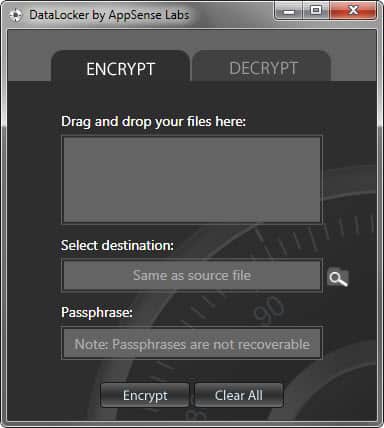
When you install the program you see a basic interface where all of the encrypting and decrypting takes place.
The program will save the encrypted files by default in the same directory the source file is stored in. This is great if you want to secure your local files. If you want to move them to the cloud, you need to manually move them into the right directory or copy them over. Doing that is not overly comfortable though, especially since you can only encrypt files and not folders and all of the files stored inside.
To encrypt files, drag and drop them into the program interface, select a password and change the destination directory if you want. Encrypted files are saved with an ALK extension on the system.
Decrypting works in the same way, only that you need to drag and drop the encrypted files into the program interface instead.
DataLocker is a simple program. It could use a few settings that would make it more usable, like the ability to encrypt folders or better automation to move encrypted files directly into the Dropbox folder.
The Windows version of the program supports both 32-bit and 64-bit editions of the operating system. It requires the Microsoft .NET Framework 4.0 to be installed on the system. (via Caschy )
Enjoyed the article? : Then sign-up for our free newsletter or RSS feed to kick off your day with the latest technology news and tips, or share the article with your friends and contacts on Facebook or Twitter.


Five Best File Encryption Tools

File encryption is your best bet if you want to keep The Man, foreign spies, or your annoying roommates out of your files. Here's a look at five of the most popular encryption tools Lifehacker readers use to lock down their files.

GNU Privacy Guard (Windows/Mac/Linux, Free)

Five Best File Encryption Tools
GNU Privacy Guard (GnuPG) is an open-source implementation of the famed Pretty Good Privacy (PGP) encryption tool—you can read the very interesting history of PGPand how GnuPG came to be here. GnuPG is a volume and individual file encryption tool with support for a dozen encryption schemes, paired keys, and expiring signatures. GnuPG doesn't only provide rock-solid local file encryption; it is, thanks to paired encryption and public key servers, a great tool for encrypted communication. Please note, regular old GnuPG is a command line tool. Check out the list of graphical wrappers and application plug-ins for various operating systems here. The screenshot above is from Cryptophane, a graphical Windows interface for GnuPG.

Disk Utility (Mac, Free)

Five Best File Encryption Tools
Disk Utility is a diverse tool that handles almost any disk-related tasks you'd need on OS X. The utility is capable of creating secure disk images and file volumes encrypted with AES 128-bit or 256-bit encryption. Like most native Mac utilities and applications, Disk Utility and the accompanying encryption blends seamlessly into the OS X experience and makes mounting and unmounting encrypted volumes a breeze. If you've never created an encrypted disk using Disk Utility before, take a look at our previous guide.

TrueCrypt (Windows/Mac/Linux, Free)

Five Best File Encryption Tools
TrueCrypt is a free, powerful, and on-the-fly disk encryption tool. With TrueCrypt, you can create secure encrypted virtual disks or even encrypt entire drives. TrueCrypt is an on-the-fly encryption tool, meaning files are decrypted as you access them and modify them and then encrypted when not in use. Thanks to various optimization tricks and full utilization of the power of modern processors, working within a TrueCrypt volume feels no different than working on a regular unsecured disk. TrueCrypt not only offers strong and transparent encryption—it also offers the ability to create hidden volumes within encrypted volumes for even more secure (and obscured) file protection.

7-zip (Windows, Free)

Five Best File Encryption Tools
Compared to some of the heavyweights in this Hive Five (like GnuPG and TrueCrypt), it might be easy to dismiss the popular file compression tool 7-zip as a lightweight. 7-zip fills a perfect niche for many people, however, by offering simple ZIP container-based encryption. If you're not interested in encrypting a ton of files or maintaining an entire encrypted volume, but you still want to make sure important documents like tax returns or other Social Security bearing documents are locked up tight, 7-zip sports strong AES-256 encryption. Create a new compressed archive, throw your files in it, and slap a password on. Your files are strongly encrypted and stored right alongside your regular documents.

AxCrypt (Windows, Free)

Five Best File Encryption Tools
AxCrypt is a free encryption tool for Windows. Once installed it integrates with the Windows shell and offers simple right-click encryption and decryption of files with AES-256 encryption. Your entire interaction with AxCrypt can take place exclusively from the right-click context menu. In addition to integrating with Windows and offering easy encryption and decryption, you can also use the tool to create self-extracting archives to securely transport files or transfer them to a friend—no AxCrypt installation necessary at the other end.

Related Articles:
Blowfish Advanced File Encryption and Security Tool
Avoiding EFS Encryption Disasters in Windows
Text Encryption Made Easy With Scrambled Egg
Encrypt Instant Messaging with Pidgin Encryption
BoxCryptor, Dropbox Realtime Encryption 

Saturday, February 18, 2012

Top 10 Downloads That Enhance Mac OS X's Built-In Tools


Mac OS X has a ton of great features, but there's always room for improvement. Many developers have felt the same and created a bunch of great apps to enhance OS X's capabilities. Here are our top 10 apps that can power up your Mac to the next level.
Wish this post was about Windows downloads? It was last week !

10. unDock


When you have a bunch of drives connected to your Mac—whether they're mounted via the network or physically attached—it can be annoying to have to manually go through and eject them all. UnDock solves that problem by adding a global hotkey, plus an option in your menubar, to eject them all at once. This is super helpful when you're running out the door and need to disconnect everything safely and quickly.
Download unDock

9. TotalTerminal


Previously known as Visor, TotalTerminal is an enhancement to Terminal, the OS X command line app, that makes a terminal window drop down from underneath your menubar on command. You just pick a shortcut, press the relevant keys, and a Terminal window will drop down. It works just like any standard Terminal window, allowing you to add tabs and choose a style.
Download Total Terminal

8. RestoreMeNot


OS X Lion brought us Restore, a great feature that lets you reboot your Mac and watch all your apps restore themselves to the state they were in before you restarted. In many cases, this is very nice. With some apps, it can get kind of annoying. RestoreMeNot is a system preference pane that allows you to choose which apps will not restore when you reopen them or restart your computer.
Download RestoreMeNot

7. ITEM


OS X offers some really handy pre-configured function keys with its laptop and external keyboards, but some apps (like Adobe Flash) make use of function keys for their keyboard shortcuts. This means you either have to press the Fn key along with the desired function key at the top of your keyboard or temporarily turn off Apple's function key features in the Keyboard system preference pane. Both options aren't ideal, but Palua solves this problem by offering up a hotkey that toggles the mode of your function keys. If you need to switch modes often, this is an enhancement you should download.
Download Palua

6. HyperDock


HyperDock enhances your dock by adding several types of awesome previews. It can preview app windows, display iCal events, and even control iTunes. All you have to do is hover over a dock icon and it will work its magic. HyperDock also allows you to easily resize windows by holding down a modifier key and moving your mouse, can let you snap windows to the edge of the screen, and offers plenty of handy shortcuts to save you time.
Download HyperDock

5. ScreenSharingMenulet


ScreenSharingMenulet is one of my favorite enhancements in Mac OS X. It displays available machines on the network that can be controlled via Mac OS X's built-in screen sharing functionality (a.k.a. VNC ). You can also manually add remote computers so you can easily connect when you're away from your local network. It's a very simple utility, but if you do a lot of screen sharing it will become your new best friend.
Download ScreenSharingMenulet

4. Hyperspaces


Spaces is OS X's built-in virtual desktop feature, and it is pretty nice on its own. If you use it and love it, you'll want to check out Hyperspaces. It'll let you name your spaces, assign different desktop pictures to each space, add labels, and assign specific keyboard shortcuts as well. It also provides tons of built-in shortcuts so you can easily manage your spaces from the keyboard. If you want more out of your virtual desktops than OS X can provide, give Hyperspaces a try.
Download Hyperspaces

3. Cobook


Cobook is our top pick among the Address Book apps for OS X , but while it's definitely its own app it is also an enhancement to the OS X Address Book. Cobook uses the same data already in Address Book, but helps keep it up-to-date by syncing with social web apps like Facebook and LinkedIn. It also provides a quick access from your menubar and is smart enough to understand what you're typing. This makes it easy to add a phone number to a contact or search for specific information without having to worry about telling Cobook what you're typing. It makes contact management on your Mac much easier.
Download Cobook

2. Perian


Perian is known as the swiss-army knife for Quicktime because it takes Quicktime's paltry codec support and makes it capable of playing pretty much any video file you can throw at it. This not only boost Quicktime Player's capabilities, but any Quicktime-compatible application. Even if you use another player, such as VLC, it's really helpful to have Perian installed so OS X doesn't refuse to work with a video file when needed.
Download Perian

1. TotalFinder


Wish that the OS X Finder offered tabbed browsing, a dual-window viewing mode, was able to display folders on top of files in lists, and offered proper cut and paste support? TotalFinder does all of that, plus quite a bit more. If you're not satisfied with the Finder as-is, it's the best OS X enhancement you're going to find. It'll make your $18 poorer, but that's a small price to pay for a number of features the Finder has been lacking for many years.
Download TotalFinder

Friday, February 17, 2012

OS X 10.8 - Gatekeeper's Additional Security Options


With the many updates and new features announced for the upcoming OS X release of Mountain Lion , one may have slipped by, but it's an important feature. It's also likely to become controversial.
Gatekeeper gives users some extra security when running third party software. Apple says Gatekeeper will help prevent users from "unknowingly downloading and installing malicious software." The system preference has three levels of security. One only allows you to install apps from the Mac App Store. A second level allows installation of apps from what Apple calls "identified developers." Apple is starting up a program that basically allows developers to have digital signing of their apps. The lowest level of security allows apps to be installed from any source, but OS X will warn you if the app is not digitally signed.
What Gatekeeper doesn't do is protect you against malware and viruses, which admittedly have not been a big problem on the Mac platform. Apple does have somebuilt in tools to identify potentially harmful programs, but sometimes the problems can get ahead of Apple implementing a solution. Of course, Windows faces similar challenges, but on a much larger scale.
Gatekeeper is in the recently released developer preview, but it is not activated.AppleInsider reports that it can be turned on by using the new OS X system policy control command-line tool "spctl(8)".
It will be interesting to see if Gatekeeper matures and adds features by the time Mountain Lion is released in late summer. We'll do a deeper dive on Gatekeeper and its possible implications for the Mac platform later on.

Thursday, February 16, 2012

Cydia Apps Leak Less Private Data than iTunes Apps


A screenshot of the ContactPrivacy feature in the unofficial Cydia iOS app platform.
Users have learned over the last few years that Apple's "walled garden" approach to third party apps isn't quite as protective of their sensitive data as it might sound. More surprising, perhaps, is another revelation: that the popular unauthorized apps outside those walls tend to respect privacy better than the approved ones inside.
After building a tool called PiOS that analyzes private data leaks from iOS apps, the researchers ran their analysis on 1,407 free apps–825 downloaded from Apple's App Store using the website App Tracker, and 526 accessible through BigBoss, the largest repository of unauthorized apps available to users through the Cydia app market for jailbroken iPhones and iPads.
A table from the UCSB study showing how frequently authorized App Store and unauthorized Cydia iOS apps leak private information.
Of those tested apps, 21 percent of official App Store apps uploaded the user's Unique Device Identifier, (UDID) a series of user-specific digits that can be tracked between apps to assemble a profile of a specific person's behavior. Four percent uploaded the device's location, and half a percent uploaded the user's contact list. When the researchers analyzed the unauthorized Cydia apps, on the other hand, only four percent leaked the user's UDID, and only one app out of the 500 tested–a program specifically designed for espionage called MobileSpy–leaked location or contact data.
But why would Cydia's unauthorized apps actually leak private data less often than those that Apple approves? Egele points to Cydia's culture of privacy among administrators and users. "The people who run Cydia seem very conscious of what information is available and can be accessed," says Egele. "The applications you get from Cydia are geared toward more privacy-aware people."
I've contacted Apple for comment and will update this post if I hear back from the company.
"If you care about this kind of thing, you should jailbreak your phone," says Freeman. "Instead of Apple making decisions about what's good and bad, you decide. People think jailbreaking is about deciding that things Apple doesn't like are good. But it  also allows you to decide that things Apple likes are bad. We provide you the tools to block the functionality you don't believe apps should have on your phone."

References

  1. ^ news that the iPhone app Path uploads users' entire contact lists(thenextweb.com) ( http://thenextweb.com/apps/2012/02/07/path-2-uploads-your-address-book-but-says-that-its-for-friend-matching-and-will-be-opt-in-soon/ )
  2. ^ here (seclab.cs.ucsb.edu) ( http://seclab.cs.ucsb.edu/media/uploads/papers/egele-ndss11.pdf )
  3. ^ discovery by a Singaporean researcher that the social networking app Path uploads users' contact list (mclov.in) ( http://mclov.in/2012/02/08/path-uploads-your-entire-address-book-to-their-servers.html )
  4. ^ using security flaws hackers find in iOS's code (www.forbes.com) ( http://www.forbes.com/sites/andygreenberg/2011/08/01/meet-comex-the-iphone-uber-hacker-who-keeps-outsmarting-apple/ )
  5. ^ ContactPrivacy (www.cultofmac.com) ( http://www.cultofmac.com/145112/how-to-keep-apps-like-path-from-accessing-your-contacts-data-jailbreak/ )
  6. ^ PrivaCy (cydia.saurik.com) ( http://cydia.saurik.com/package/com.saurik.privacy )
  7. ^ here (seclab.cs.ucsb.edu) ( http://seclab.cs.ucsb.edu/media/uploads/papers/egele-ndss11.pdf )
  8. As the scandal swirled this past week over news that the iPhone app Path uploads users' entire contact lists 1 without permission, I came upon a study (PDF here 2 ) released last year by a group of researchers at the University of California at Santa Barbara and the International Security Systems Lab that aimed to analyze how and where iPhone apps transmit users' private data. Not only did the researchers find that one in five of the free apps in Apple's app store upload private data back to the apps' creators that could potentially identify users and allow profiles to be built of their activities. They also discovered that programs in Cydia, the most popular platform for unauthorized apps that run only on "jailbroken" iPhones, tend to leak private data far less frequently than Apple's approved apps.
  9. For Manuel Egele, a post-doctoral researcher at UCSB, the discovery by a Singaporean researcher that the social networking app Path uploads users' contact list 3 only confirms a pattern he and his co-authors have long seen. Four of the Apple-approved apps he tested last year were found to similarly upload contacts, including one from the location-based social network Gowalla.  "Clearly this behavior hasn't changed over the last year. I'm not sure whether there's been any improvement from Apple's side," Egele says. "For easily accessible data, app store apps are much more frequently accessing and leaking that data. The app store is supposed to be a walled garden. Unless Apple gives approval, you can't put things there. But whatever job the company is doing isn't good enough."
  10. With somewhere between 10 million and 15 million users, Cydia's app platform has become the default unofficial app store of users who jailbreak their iPhones and iPads, hacking them to install applications and operating system tweaks that Apple restrictions are designed to block. That kind of device hacking, using security flaws hackers find in iOS's code 4 to unlock its restrictions against running unapproved code, also introduces new security and privacy risks for users by stripping away the phone or tablet's security features and leaving the device open to malware.
  11. But Jay Freeman, Cydia's creator, points to numerous applications available via Cydia that actually give users privacy and security features they wouldn't otherwise have. Immediately after the Path scandal broke, for instance, a developer named Ryan Petrich created a tweak for Cydia called ContactPrivacy 5that warns the user whenever an application wants to upload his or her contact information, (shown above) rather than simply allowing the data to be transmitted by default. Another app that Freeman wrote himself, called PrivaCy 6 , gives the users a toggle switch that allows them to control whether any particular app can upload usage statistics to a remote server.
  12. Read the study from the International Security Systems Lab and the University of California at Santa Barbara here 7 .